Connect Azure
Review Azure CloudShell setup, obtain workspace application approval and verify separate cloud connections.
How-to · Updated 2026-10-17 · Describes release 0.1.164
Before you start
Choose one directory and subscription. You need permission to manage connections in this workspace. Your Azure administrator needs app-registration rights in that directory and permission to assign the reviewed roles. Use Azure Cloud Shell in Bash, signed in to the intended directory.
Open Keyless cloud access — Azure (in the product: /portal/connect/keyless?provider=azure). Platform staff must configure and publish the control-plane and workspace-reader federation identities. The executing processes also need the matching projected workload token. Publishing an issuer and subject, or creating an application, does not verify cloud access.
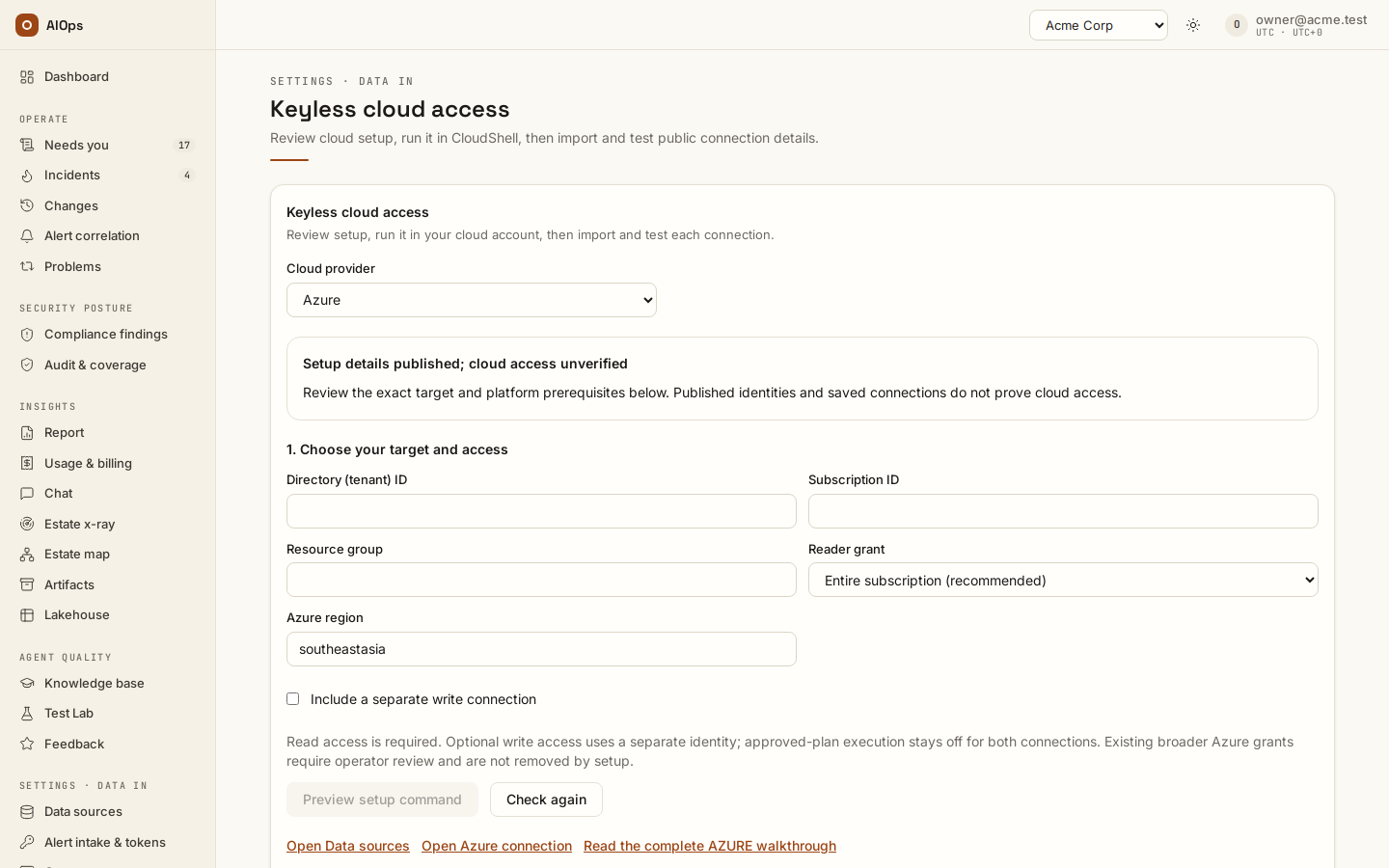
1. Review the target and command
- Enter Directory (tenant) ID, Subscription ID, Resource group and the Azure region. Keep Reader grant on Entire subscription (recommended): change capture reads the subscription Activity Log, which a resource-group reader is denied.
- Leave Include a separate write connection off for investigation only. If selected, the resource group bounds the optional writer. The script can create that empty, tagged group if absent; conflicting existing ownership stops setup.
- Select Preview setup command. Review the complete script, directory, subscription, federation identities and role scopes.
- Copy azure keyless setup command into Azure Cloud Shell. Type
applyonly after reviewing it. The script validates the selected account and existing application ownership before adding federation or role assignments.
The reader receives the roles named in the preview on the subscription, or only on the resource group when you choose that reader grant. The optional writer receives the displayed VM operations only in the selected resource group, plus named subscription-level read probes. Read and write use separate applications. The setup creates identities, federation and IAM configuration; it does not create VMs, run commands on workloads or enable scanners.
2. Connect and verify
Copy only the final aiops.cloud.bootstrap.v1 JSON object into Public CloudShell output, then select Preview connections. It contains public directory, subscription and application IDs. Do not paste a client secret, token or the CloudShell log.
New application IDs must first be verified and approved by platform staff for this exact workspace. If Platform application approval required appears, copy Azure application handoff for your platform administrator. After approval, select Refresh application approval. Import stays blocked while either requested application lacks its workspace binding. A pasted app ID is not proof of ownership or cloud access.
For platform staff: use GET /api/aiops/admin/tenants/{workspace_id}/cloud-runtime, verify the returned applications, then PUT the reviewed configuration with the exact directory/client pairs in azure_bindings. Preserve its existing reader, aws_targets and other approved bindings. These workspace mappings are managed through the staff API, not the global Customer connection setup screen.
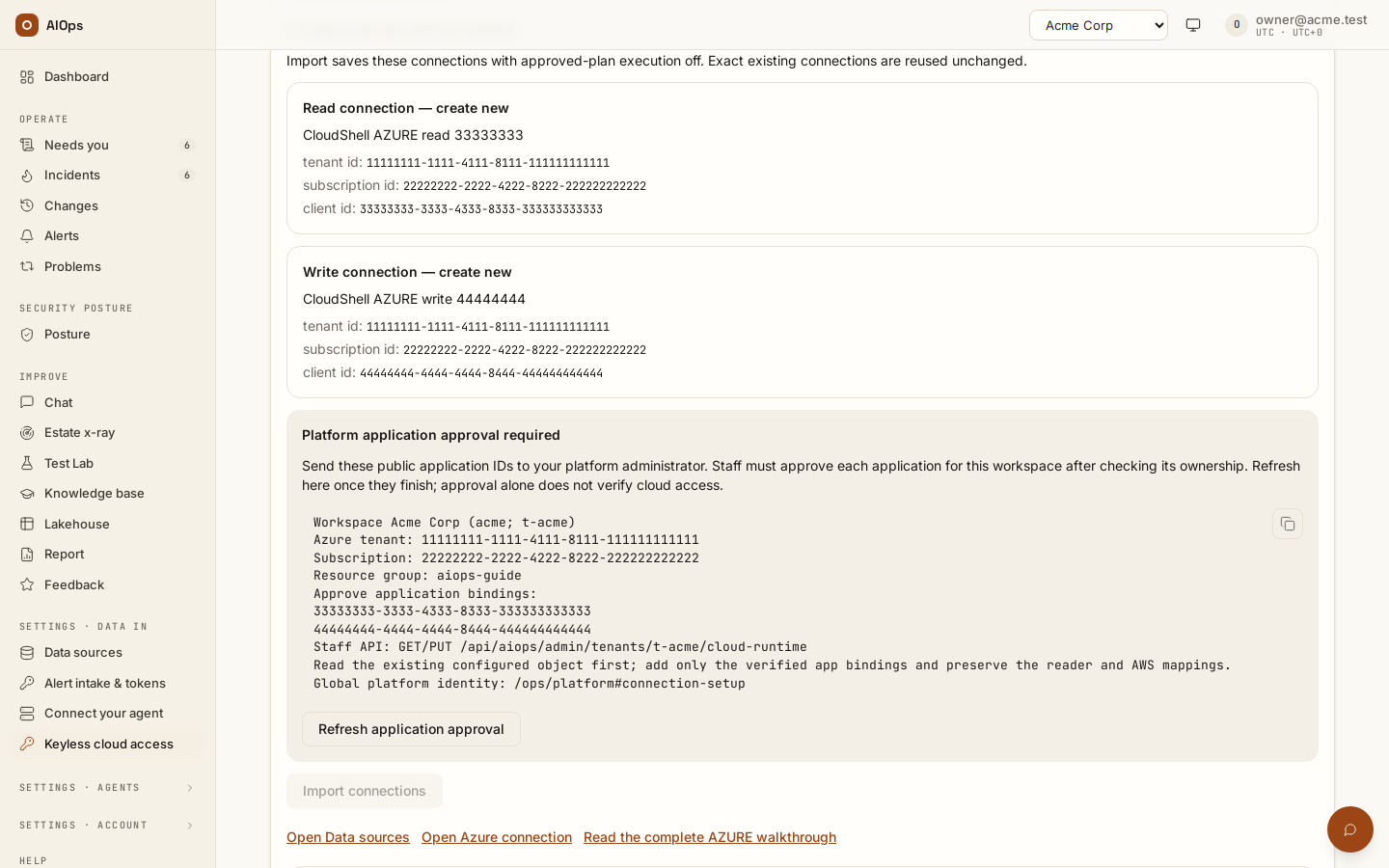
Review the separate investigation and optional write connections. Both start with Allow use for approved plans off. Exact existing keyless connections are reused. An identity with conflicting scope, authentication, enabled state or consent blocks import; no existing connection is silently overwritten.
Select Import connections. If a partial save fails, fix the reported error and retry. The page rereads existing connections and reuses exact matches.
Test and inspect the result
Select Test read connection and, when present, Test write connection independently. Saving a connection does not run these checks. Read each result and its execution location; a queued private-agent check is still pending.
The Azure check exchanges the identity and reads the connection's resource group, or lists the subscription's resource groups when the connection has none. It does not test every operation or perform a repair. A resource-group-only Reader assignment passes only for a connection scoped to that group and fails the subscription list; review the intended scope with your administrator instead of adding broad write permissions.
Run Audit perms on the connection's row in Data sources and read the checked scopes and coverage limits. ARM metadata access does not itself grant storage contents, Key Vault secrets or every log workspace. Add a Log Analytics workspace connector and the required workspace access only when you need KQL evidence.
Scan the read connection in Estate x-ray (in the product: /portal/xray), inspect its coverage, then send a validation alert before configuring Azure Monitor alerts.
Existing credentials and approved changes
Existing connections remain available in Data sources (in the product: /portal/datasources). If your organization uses a client secret, select Connect datasource → Azure, choose the credential authentication method and enter the directory, subscription, client ID and secret there. The public CloudShell import accepts federation output only.
To use a writer, separately enable Allow use for approved plans on that connection, then review the exact request and target prepared by the incident or Change. Cloud roles, connection consent and plan approval remain separate. An accepted Azure request is not proof of recovery; inspect the independent verification evidence.
The guided setup currently supports AWS and Azure through CloudShell. GCP setup and an infrastructure-as-code export are deferred.