Members and roles
Invite, re-role and remove members, create custom roles, what every workspace includes, the tenant brand, and what each role may do day to day.
How-to · Updated 2026-10-26 · Describes release 0.1.164
Settings · Account → Members & roles (/portal/members) is where you add people, change their role, remove them and define custom roles; managing people and changing Appearance needs members.manage. This page covers membership and roles. The keys behind every role are in the Permissions reference, sign-in through your own identity provider is on Single sign-on, the break-glass grant platform staff use is on Support access, and the trail every change here leaves is the Audit log.
Concepts
Account vs membership. A platform account (an email plus a login method) is separate from membership of your tenant. Inviting a member links an existing account to your tenant with a role — or, for an address with no account yet, creates a local one and hands you a one-time link that sets its password. See Invite a member.
Role. A role is a named set of permission keys. Five builtin roles ship with every tenant and are synchronised from code at startup — they cannot be edited or deleted. Custom roles are yours.
Included features. Every enabled tenant/workspace has all product features. Role permissions and setup prerequisites still apply. See Feature availability.
Create a custom role
Custom roles pick freely from the same 16 keys. They appear in the Role dropdown when adding a member and in Default role for new logins for SSO.
- Open Settings · Account → Members & roles → Role definitions and find Role definitions. Requires
members.manage. - Click New role.
- Enter Name (for example
sre-oncall) and Description. - Tick the permissions under Permissions — each is named in words (hover one for its key); the list holds all 16 and scrolls.
- Click Create role.
The role appears as a column of the Role definitions grid, after the five builtin roles, with its description under its name and a check on every permission it holds. The grid reads the same for every member, so anyone can see what a role may do before it is assigned; only members.manage sees New role, Edit and Delete. It is now selectable in Invite member and on each member row. The action is audited as role.create with the name and the permission list.
To change one, click Edit next to its name under the grid and then Save role; the dialog states that changes apply to every member holding it on their next request, and the action is audited as role.update. The Name field only exists on create — the edit dialog shows description and permissions. To rename a role, create the new one, move its members, then delete the old one.
To delete one, click Delete and confirm Delete role. The column disappears from the grid and the name is free again, audited as role.delete. A role that members still hold blocks the delete with members still hold this role — reassign them first.
Builtin roles are the first five columns, each with a one-line summary, and have no Edit or Delete buttons — edits to them would be overwritten at the next startup, so the product does not offer them (the API refuses too: builtin roles are not editable / builtin roles are not deletable). A custom role name that collides with a builtin name is rejected with a 409.
Managing members
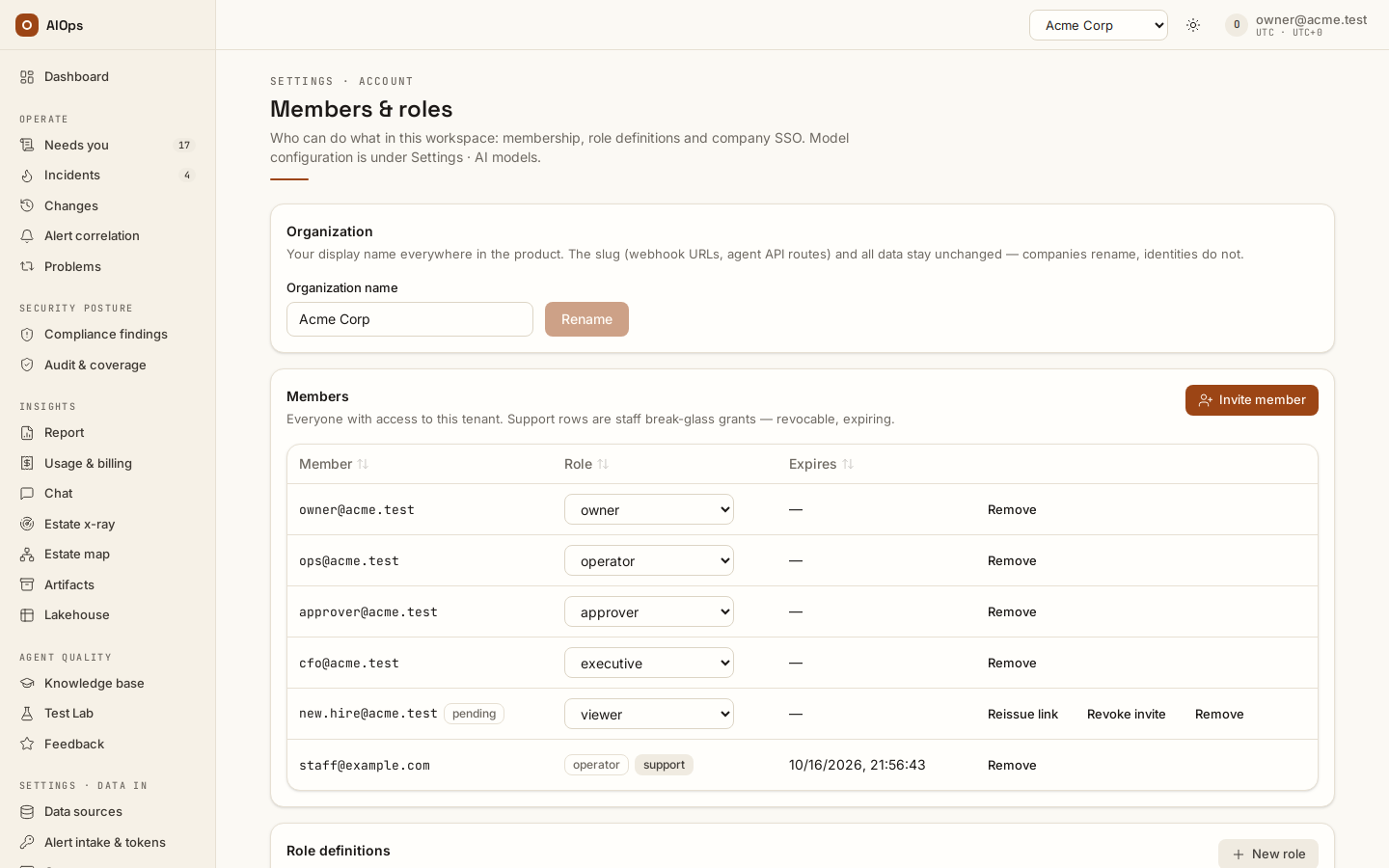
Invite a member
- Open Settings · Account → Members & roles → Members. Requires
members.manage. - Click Invite member.
- Enter Email.
- Pick Role from the tenant's roles (builtin plus custom).
- Click Invite member.
The dialog then tells you which of two things happened — so, as with the earlier "no user with email" refusal, anyone holding members.manage can learn whether an address already has a platform account:
- Added — the address already had an account. It is linked to your tenant with the chosen role, the permissions apply immediately, and the action is audited as
member.add. - Invite link — the address had no account. A local account is created, the member appears in the table with a
pendingbadge, and the dialog shows a one-time invite link with a Copy button. The link opens a page where the person sets a password (12 characters or more) and is signed straight in; it expires after seven days. When an email relay is configured (your own SMTP server under Settings · Account → Notifications & on-call → Email delivery, or the platform default) the dialog says Email sent; otherwise it says No email relay configured — copy this link and send it yourself. The action is audited asmember.invited(never with the token).
A row that has not activated yet carries two actions besides Remove: Reissue link mints a fresh link and invalidates the old one — the answer to an expired or lost link, audited as member.invite_reissued — and Revoke invite burns the link while keeping the membership row (audited as member.invite_revoked). A row that is neither pending nor activated shows never signed in. Reissue is refused with a 409 once the account has a single-sign-on link, or if it belongs to another workspace or organization.
Reset a member's password
Platform staff cannot set the password of an account that holds workspace access, so a member who lost a local password gets a link from you. Reset password appears on the row of a member who signs in with a local password and belongs to no other workspace and no organization. It mints a one-time link, audited as member.password_reset_link. When an email relay is configured the link is emailed to the member only, and the Password reset link dialog says Email sent without showing it, so nobody else can sign in as that member; without a relay the dialog shows the link to copy and hand over. The row shows reset pending until it is used or expires, and Revoke invite burns it. The old password keeps working until the link is used. Using it sets the new password, ends every other session of the account and is audited as auth.password_reset. A link stops working if the account joins another workspace or organization before it is used. A member who signs in through single sign-on resets the password at the identity provider. For a member who is also in another workspace or in an organization, or for your workspace's only owner, platform staff can email a reset link; your audit log then shows member.password_reset_link with via: platform_staff.
A link from Reset password counts like an invite link for the rule above: other organizations cannot add the account afterwards.
An invite cannot create an account on a platform-staff email domain, or for an address the platform promotes to staff at sign-in (400), and the invite itself grants no platform-staff rights.
An address that is already in the Members table is refused by the dialog (is already a member — change the role or reissue a link from their row): the invite path never changes a current member's role — see Change a role below.
A role name that does not exist in this tenant is refused with no role named '<name>' in this tenant — create the custom role first.
An account that signs in through another organization's single sign-on is refused with a 409 that names that organization's identity provider: this account signs in through another organization's SSO (<issuer>) and cannot be added here. Identity-provider email domains are claimed first-come, so without this check an organization could pre-create an account for your address and inherit the role you grant. Accounts from your own identity provider, from any workspace of your organization, and local accounts are unaffected. If the person really is a partner or managed-service engineer, ask platform staff to trust that issuer for this workspace (the sso_trusted_issuers setting — staff only, audited as tenant.sso_trust_set), then add them again.
An account whose password was set through another organization's invite link is refused the same way: this account was activated from another organization's invite link and cannot be added here. The inviting owner always receives the link, so activating it does not prove who controls the address, and the inviter could still sign in with the password they chose. Workspaces of the inviting organization can still add the account. Such an account also never links to the platform's own single sign-on; it keeps signing in with its password.
Single sign-on instead of invite links
If you run an identity provider, the invite link is optional: tick Auto-provision members on first login in the Single sign-on card (Single sign-on) and the colleague signs in with their work email — the account and membership are created in one step, at Default role for new logins or the role their group maps to (audited as member.auto_provisioned). A support grant is not a route for your colleagues; it exists only so platform staff can help you — see Support access.
Change a role
- Open Members & roles. Requires
members.manage. - Pick the new role in the Role selector on the member's row.
The row updates in place; the action is audited as member.role_changed.
The platform refuses a change that would leave the tenant with nobody holding members.manage (cannot remove or downgrade the only member with members.manage). Promote a second owner first.
Remove a member
- Open Members & roles. Requires
members.manage. - Click Remove on the member's row (every row has one, including support rows).
- Read the consequence line, then confirm Remove member.
The row disappears from the Members table and the person's next request to this tenant returns 404. The action is audited as member.remove — or as support.revoked if the row was a staff break-glass grant.
The Members table has four columns — Member (email, plus pending while an invite link is out or never signed in for an account that never activated), Role (the role selector, or the role name plus a support badge on staff rows), Expires (— for an ordinary membership, a timestamp for a support grant) and the actions (Reissue link / Revoke invite on an unactivated row, Remove on every row). Column headers sort the rows the table has loaded.
What happens when a member leaves
Removing the membership is the whole of the access change, and it is immediate. What it does not do is worth knowing before an offboarding audit:
- Their personal access tokens are not deleted. A token resolves to its holder's account and is then bounded by that account's tenant permissions as well as its own read/write/admin scope, so the moment the membership is gone the token gets 404 from every endpoint of this tenant. If the person is a member of another tenant, the same token still works there. See Integrations → Personal access tokens.
- You cannot revoke someone else's token. Token management is self-service (
/portal/tokensacts on your own account only). If you need the credential itself dead rather than merely powerless, ask platform staff to disable the account. - An SSO account still exists in your directory. Disabling it there blocks future logins; the membership row here survives until you remove it. Do both, in that order, or auto-provisioning can re-create the membership on their next login.
- Their approvals and audit rows stay. Decisions they made, RCAs they scored and every row naming them remain — that is the point of an append-only log. Searching their user id in the audit log reconstructs their whole standing; their email also appears inside the
member.addpayload from when they joined.
Feature availability
Every enabled tenant and workspace includes Estate x-ray, Lakehouse, Test Lab and custom model endpoints. There is no feature grant or terms-acceptance step in the portal or platform console.
Your role still decides which pages, data and actions you may use. A datasource, reachable runtime, model endpoint or disposable lab may still need configuration. Review collection specifications and schedules on Lakehouse; feature availability does not prove data has been collected. Cloud writes still require connection consent and an exact approved plan.
Use operational controls to pause work: disable a collection specification, change its schedule or pause the relevant agents. A historical feature revocation no longer pauses an otherwise enabled collector or configured model endpoint.
Historical grant and agreement records remain historical evidence. They do not turn features on or off, and the platform does not invent a new acceptance on your behalf.
Appearance
Settings · Account → Appearance (/portal/settings/appearance) changes the workspace's palette, typography and surfaces and needs members.manage. The choice applies to every member.
Two things are easy to confuse:
- The brand is tenant-wide. It sets the palette, typography and surfaces for every member of the tenant. Changing it changes what your colleagues see.
- Light / dark is per user. The toggle in the top bar is stored in your own browser and affects nobody else. If your dark mode "did not stick for the team", that is why — see Roles and personal preferences below.
Change the tenant brand
- Open Settings · Account → Appearance. Requires
members.manage. - Compare Warm console and Control deck. Each card shows a static preview.
- Click Apply this theme on the one you want.
The interface re-themes immediately, the chosen card gains an Active badge and its button reads Currently active, and the notice reads Appearance updated for everyone in this tenant. The change is stored as a tenant setting and audited as tenant.update. Every other member picks it up on their next page load.
Roles and personal preferences
Owners manage the workspace. Operators run operational work and request fixes. Approvers review evidence and decisions and release fixes. Viewers read available records. Executives review results, ask questions and approve. Your exact access may come from a custom role.
Use your account menu to sign out and the theme control for your own display preference. If a task is unavailable, ask your workspace owner for the required permission. Platform staff are whoever holds a superadmin account on this installation; after handover, they are your own platform administrators. They need a separate membership or support grant to access customer content.
Use cases
Onboarding a new on-call rotation (tenant owner)
Four new engineers join the rotation. The owner first creates a custom role sre-oncall with incidents.view, incidents.act, approvals.decide, datasources.view, knowledge.view, report.view, feedback.submit and chat.ask — everything needed to run an incident, nothing that reconfigures the gate. Only then, in the Single sign-on card, they set Group → role map to sre-team = sre-oncall and click Save identity provider (saving first would fail with no role named 'sre-oncall' in this tenant). The four sign in with their work email and land in the tenant with the right role, no ticket and no account creation. Because the role omits pillars.manage, nobody on-call can widen what agents may execute at 03:00 — they can tune an agent's prompt with incidents.act, but not its approval gates. They can open Settings · Data in → Data sources read-only with datasources.view; connection changes remain unavailable without datasources.manage.
Opening an included feature
An owner opens Estate x-ray, checks the workspace and chooses readable connections with a cost ceiling. Every enabled workspace includes the feature; there is no grant or terms dialog. Launching the scan remains an explicit action under the user's permissions, and its results must be reviewed before adoption.
Revoking a leaver (tenant owner)
An operator leaves. The owner opens Members & roles, clicks Remove on their row and confirms Remove member; API tokens the leaver minted lose their tenant permissions at the same instant, though the tokens themselves are not deleted and the owner cannot delete them. Because the account came in through SSO, the owner also disables it in the corporate directory — otherwise auto-provisioning would re-create the membership on the leaver's next sign-in. The removal is verifiable afterwards by searching the leaver's user id in the audit log; their email also appears inside the member.add payload from when they joined.
Troubleshooting
Cross-cutting symptoms — a queued investigation, a missing page, an empty approval queue — are in Troubleshooting. The table below covers only the errors Members & roles and Appearance produce.
| Symptom | Cause | Fix |
|---|---|---|
| 409 on Reissue link or Reset password | The account has an SSO link or is platform staff, or it also sits in another workspace or organization | Nothing to reissue — they sign in as they do today; an SSO account is reset at the identity provider; for another organization's account, see the SSO 409 above |
no role named '<name>' in this tenant |
The role in the Add-member or SSO form does not exist here | Create the custom role first, then reference it |
cannot remove or downgrade the only member with members.manage |
Last-admin guard | Assign a second member the owner role first |
members still hold this role — reassign them first |
Deleting a role still in use | Move those members to another role, then delete |
'<name>' is a reserved builtin role name |
Custom role clashing with a builtin | Choose another name |
role '<name>' already exists |
Two custom roles cannot share a name | Edit the existing role instead |
| Edit / Delete missing on a role | It is builtin, and code is the source of truth | Create a custom role with the permission set you want |
| No Name field when editing a role | Roles cannot be renamed | Create the new role, move members, delete the old one |
| Members & roles says "Not available to your role" | You reached /portal/members without members.manage |
People, roles and sign-in need members.manage; feature status remains readable |
| A colleague's colours changed and they did not ask for it | Someone applied a new brand on Appearance | The brand is tenant-wide by design; the tenant.update audit row names who changed it |
Limits and gotchas
- The role dropdown lists roles, not permissions. Two members with different roles can get different answers from Chat, because the tool registry is filtered by permission when the session is built.
- You cannot revoke another member's API token. Removing their membership removes their access to this tenant; the token itself is theirs to revoke, or platform staff can disable the account.
- Builtin roles are re-synchronised at startup. Anything you would want to change about them belongs in a custom role. If a custom role already holds a name that a later release turns into a builtin, the platform leaves your role alone and logs a warning rather than overwriting it.