Estate harvest and x-ray
Harvest a cloud or Kubernetes inventory, launch a read-only Estate x-ray scan, read its service graph and Estate map, apply drafts, and know how far to trust the model.
How-to · Updated 2026-10-28 · Describes release 0.1.164
Estate x-ray
Estate x-ray (/portal/xray) is included for every enabled workspace. Your role controls viewing and launching scans; a scan still needs readable connections, a usable model and a cost limit.
Two different things build the estate model, and only one of them uses AI:
- The inventory read (Estate harvest) is deterministic code: no language model, no model spend. It runs daily, on Harvest now and before each scan.
- The x-ray mission is an AI agent run. It runs only when a scan is launched, by a person or by a re-scan schedule a workspace owner set, and it stops at that scan's Budget (USD), never above the platform's per-scan ceiling. What it finds stays a proposal on the scan: its objects and relations reach the model only when a person selects Use selected context, or when a workspace owner has turned on automatic adoption of scheduled scans. Apply as draft on its ontology recommendation saves an inactive knowledge draft the agents read only once someone activates it, and records the dependency edges it names in the service graph straight away, as discovered.
datasources.view reads the scan list, a scan's detail and its report; datasources.manage launches, attaches documents, cancels and deletes. Applying a recommendation needs the permission for its kind.
Launch a scan
Requires datasources.manage.
- Open Insights → Estate x-ray and choose New scan. The dialog is titled Launch estate x-ray.
- Under Datasources (read-role), select the enabled read connections to inspect. Multiple selections form one scan; remediation-only credentials are excluded.
- Under Model, leave the field blank to use the configured premium tier, or pick a model. Add two or more models for separate concurrent scans.
- Set Budget (USD). The default is 25 USD, subject to the platform's ceiling; each scan of a multi-model launch gets its own budget.
- Optionally add trusted operator guidance and architecture documents under Guidance and Attachments. Guidance is capped at 2,000 characters; each attachment at 5 MB and 200,000 extracted characters. Documents are read lazily through
read_attachment, not inlined into the prompt. - Select Launch scan, or Launch N scans to compare. A comparison opens its group; a single scan opens its result.
A tenant may run four scans at once. A launch that would push it over — including the extra scans of a multi-model launch — is refused with a conflict naming how many are already running.
What a scan must finish before it will stop
By default a scan is one self-directing agentic run with a step cap of 60. The agent owns its own plan through ledger tools, and a finish gate refuses to let it stop early. When the agent stops calling tools, the gate checks the ledger and pushes it back into the loop while any of these are unmet:
- no plan has been recorded,
- plan items are still open,
- a selected datasource has no recorded finding — it must either be investigated or flagged unreachable,
- one of the seven pillar rows has no coverage recorded (the six operational pillars plus reporting),
- no estate ontology has been produced, meaning neither recorded entities nor an explicit ontology draft.
The gate is bounded. It pushes the agent back a fixed number of times (two by default), never once 80% of the budget is spent, and never in the last two steps — a push that cannot be acted on only burns money. A scan that runs out of pushes, budget or steps finishes honestly, with what it could not reach written into Coverage notes.
The report itself is rendered by code from the ledger plus a small executive-summary call, not by one giant synthesis prompt. If that one summary call fails, the report still ships from the ledger with the summary line marked unavailable.
Read the report
The scan card leads with its status, model, selected connections and the read-only proof (how many write attempts the guard refused). Below the header:
- The scan's chat and, when reviewable inventory or dependency context exists, Use what discovery learned come first.
- The phase table, cost, live tool calls, coverage notes, operator guidance, agent plan and findings follow. The detail refreshes every five seconds while running.
- Recommendations holds connection suggestions, permission advice and disabled-draft actions; Service graph · ontology lists the discovered entities.
- The saved report and its download provide the narrative evidence; a rating can be submitted with
feedback.submit.
Use reviewed context
A completed or budget-limited scan may produce service inventory (ontology) and dependency (service_graph) context. Reading the review needs knowledge.view; using it needs knowledge.manage as well as discovery access.
- In Use what discovery learned, open Review context and evidence for each selected item. Check the source evidence, new/changed/unchanged state and active version. Inventory may include previously recorded resources; the review names that merge base and shows the resulting resources and relationships.
- Keep only the items you intend to use selected, then choose Use selected context.
- Read each item's result. In use · version N identifies the active saved resource. A failed item retains its reason while successful items remain saved.
- Correct a blocked connection or stale review, refresh the review and retry the remaining items. A reload or network retry does not create duplicate context. If someone later disables or removes a saved version, the result shows that state and points to Knowledge; retrying does not reactivate it.
Changed context from the same sources creates a new version and keeps the old one in history. An unrelated or manually maintained item is not replaced merely because its name matches. Successful selections become available to future investigations and update discovered dependency edges. They do not enable collectors, instructions, remediation routes or automatic incident suppression.
The separate automatically saved runbook remains visible when present. Use selected context controls additional inventory and dependency knowledge; it is not the only way a discovery result can already be stored in AIOps.
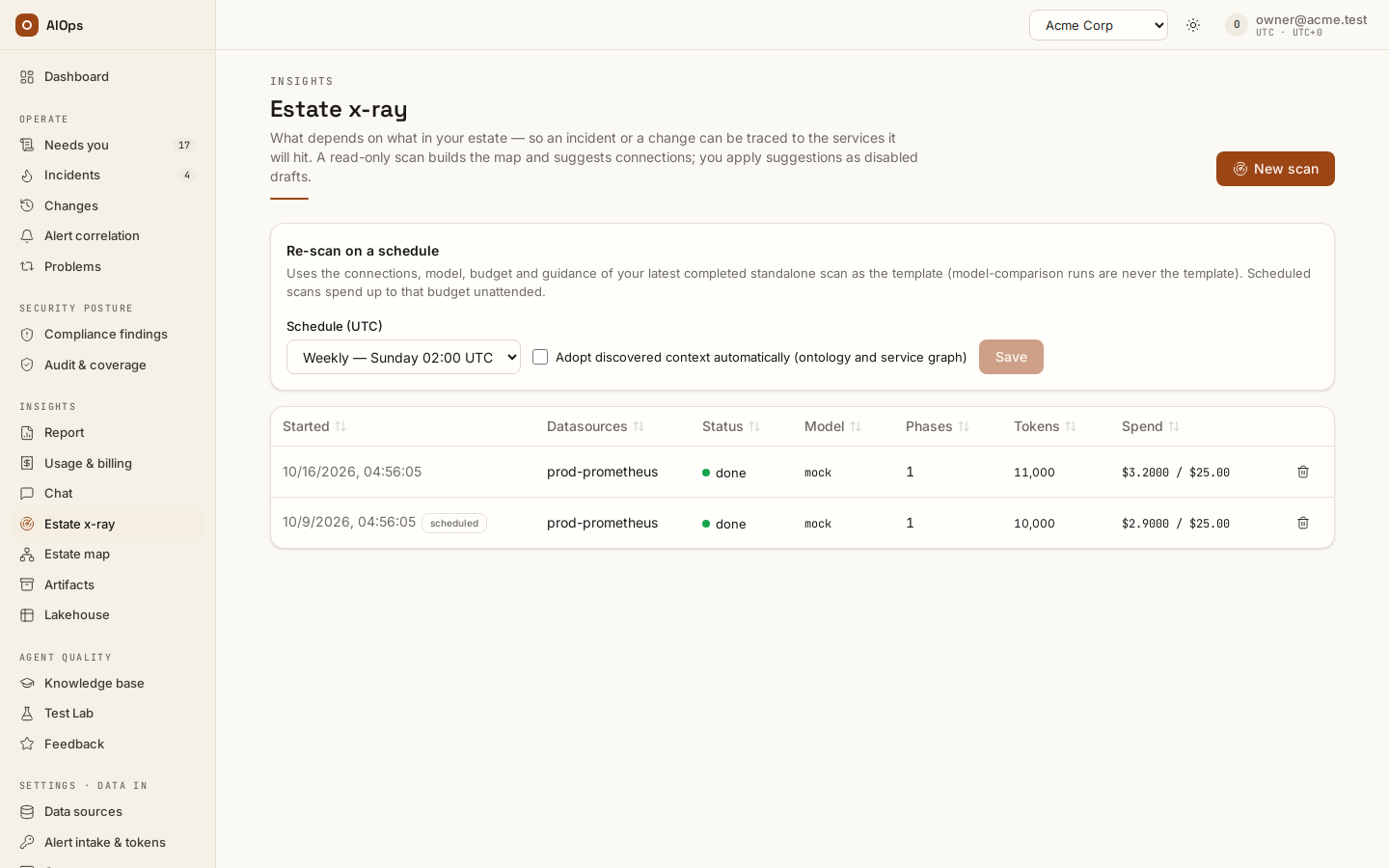
Re-scan on a schedule
Requires members.manage; the Re-scan on a schedule card sits above the scan list and is shown only to members who hold it. Choose Weekly (Sunday 02:00 UTC), Monthly (the 1st, 02:00 UTC) or a custom five-field cron and Save. A cron is always UTC and may run at most once a day: a cron that would fire more often is refused, and the card shows why. The schedule is a workspace setting (aiops_xray_schedule_cron; empty means off), so it appears in the audit trail like any other settings change.
Each run clones a template: your latest completed standalone scan (finished or budget-limited; a model-comparison run is never the template). Its connections, model, budget, guidance and attachments are reused as they are; a connection that has since been disabled, removed or reserved for remediation is dropped. A scheduled scan spends up to the template's budget — capped by the platform's per-scan ceiling — unattended, so set the template's budget with that in mind. Scheduled rows carry a scheduled badge in the list and belong to the user who launched the template.
Saving a new cron, changing it or clearing it re-arms the schedule, so the first run is always the next slot after the save; re-enabling a schedule never runs a scan at once. A slot missed while the platform was down runs once when it is back, and several missed slots collapse into one run. A due slot is skipped, with the reason recorded in the xray.scheduled audit marker, when:
- a scan is still running;
- there is no completed standalone scan to use as the template;
- x-ray is not enabled for the workspace;
- none of the template's connections is still an enabled read connection;
- the workspace's cost guardrails or kill switch, or the platform licence, refuse new agent spend.
Tick Adopt discovered context automatically (aiops_xray_schedule_adopt) to let the platform run Use selected context for you once a scheduled scan finishes. It adopts a finished scheduled scan only when that scan is the newest finished scan of the workspace; an older scheduled scan still waiting for adoption is marked superseded and never overwrites newer context. Per scan it takes, for each context name, the first inventory (ontology) or dependency (service_graph) item with no blocking reason, adopts it under the actor system:scheduler, and records the result on the scan the same way a human adoption is. Collectors, instructions and remediation routes are never adopted this way. Leave it off to keep every adoption a human decision.
Two things make a periodic re-scan tell the truth about age. Dependency edges are recorded from each scan's own entities, so an edge an older scan found and the new scan does not see is not re-stamped as fresh. It keeps its old date, and after seven days (the default) it loses any fold rights: it still shows and still widens blast radius, but it can no longer fold one service's incident into another's. And inventory context carries the date of the scan that produced it — the agent's prompt header reads Naming & conventions: <name> (as of YYYY-MM-DD) — so the agent knows it is reading a snapshot, not the live estate. Context adopted before dates were recorded stays undated until a new version of it is adopted or applied.
The service graph: what an entity is
Service graph · ontology is the block a customer remembers, and it is not a picture the model drew. Every node is an entity: a structured record the agent wrote during the scan with a record_entity call, carrying a type, a name, a set of properties, a list of rel → target relations, and the evidence line that justified it. Entities are capped at 300 per scan.
Three things follow from that, and they are the difference between an estate map and a diagram:
- It is evidence-backed. Hover any card to see its properties, its evidence line and every relation it claims; the rest of the graph dims to the neighbours of the card you are on. A node with no evidence is a node the agent never actually observed.
- It merges, it does not overwrite. Recording the same
typeplusnametwice updates that one record: new property values win, properties the new observation did not mention survive, and relations are unioned. - It grows across scans. When you apply the ontology recommendation, the entity list is merged into your tenant's active ontology knowledge item by the same rule. Your second scan of the same estate produces a richer model than your first, and a scan of a corner of the estate never wipes the rest of the map.
The block opens with a count card per entity type, then one labelled row per type with the entity cards flowing to the right, then a legend. An active ontology is always-in-context for its allowed pillars. A result or inactive draft is not the same as active context; check its Knowledge state or the reviewed-context receipt.
Why some cards are tinted red
A card is tinted red, and counted in its type card's N need attention line, when its own properties or evidence contain a risk signal. The scan does not decide this — the rendering does, from the text the agent recorded, so the tint is reproducible and you can audit it against the evidence line.
The signals it matches are: unverified, violat (violation, violated), public, missing, no owner, no slo, failed, not encrypted, 1 backup or 1d backup, drift, expos (exposed, exposure), unhealthy, deprecat (deprecated), orphan.
That is a text match, which cuts both ways: an entity whose evidence reads backup: none is a real problem and is not tinted, because none of those words appear. Treat the tint as a shortlist, not a verdict, and never as a count. A card tinted because its evidence says not encrypted and one tinted because its properties say owner: missing are both red and are not the same problem. Open the card, read the evidence, and if it is real, raise it — the scan's own Findings block is where the agent recorded the ones it judged significant.
External nodes
An entity can claim a relation to something the scan never recorded — a payment gateway, a partner API, a database in an account you did not connect. Those targets are not dropped and not invented into entities. They are rendered in the trailing external row, in italics, with the subtitle external — referenced, not scanned.
The external row is a coverage signal. A dependency your services talk to that no connector can see is exactly the gap the Pillar coverage table and the datasource suggestions exist to close.
The estate map
At the top of a finished scan, the Estate card states what the map holds in one line: <N> entities, <M> relationships — <K> services, <J> infrastructure objects; <U> unmodelled. Relationships come first on purpose. The blast radius of a change is computed by walking them (a security group to the interfaces that use it, to the instances and load balancers behind those), so a map with many entities and few relationships can list your estate and still not answer "what else is affected".
- Under the line, chips give the counts by class: the largest eight classes with their counts, then
n more. - Coverage is a disclosure under the card. It lists the counts by type, the unmodelled types (resources the harvest saw but has no typed reader for, so their relations are unknown), the unexpanded rules (a prefix-list or peered source the harvest did not expand) and the denied calls (what the read-only guard refused before execution). A change that touches any of these can only be labelled estimated, not certified.
- Download ontology (.ttl) saves the estate of this scan as Turtle, with the vocabulary (the
est:classes and relations) prepended, so it opens in any RDF tool. It needsdatasources.view.
Estate harvest
A scan does not rely on the model to enumerate your estate. Before the agent starts, the platform reads the inventory of each selected AWS, Azure, Kubernetes (kubectl), FortiGate and Palo Alto Networks connection directly, with deterministic API calls through the same read-only credential, and merges the result into the workspace's inventory (ontology) knowledge item. The agent then enriches that map instead of recreating it. A connection keeps its own harvest between scans, so the Data sources page shows it on the connection row: Harvested <ago> ago · <n> entities, <u> unmodelled, or not harvested.
The platform refreshes every harvestable connection once a day by default (aiops_inventory_interval_s, per-workspace override, 0 switches it off). To refresh one now, choose Harvest now on its row (datasources.manage). The call waits up to 55 seconds. The page then answers Harvested N entities. or Harvest skipped: <reason>; when a reader failed and nothing was read, the reason follows Harvested 0 entities. If the estate is larger, the page says the harvest is still running; it keeps going and the row updates when it lands. Metrics, logs and ticket connections have no inventory reader, so they show neither a status nor the button, and a write-role connection is never harvested.
Connecting a system does not start a harvest. A workspace that has never had a scheduled harvest gets its first one at the scheduler's next pass; after that, a new connection waits for the next daily run, so choose Harvest now once it is connected. A harvest makes no model call and books no model spend, unlike a scan.
Through the API. POST /api/aiops/{tid}/xray/harvest needs datasources.manage (a personal access token needs the write scope; the MCP tool is harvest_estate). The body names the connections, at most 50:
{ "datasource_ids": ["<connection id>"] }
Send {} (or an empty datasource_ids list) to harvest every harvestable connection of the workspace. The call waits up to 55 seconds:
200returns{"harvests": [...]}, one entry per connection withdatasource_id,datasource,entities,modelled,unmodelled,notes,knowledge_id,version,artifact_idandskipped. A non-emptyskippedsays why nothing was read, for examplewrite-role credential: never harvested,estate inventory is off for this connectionora harvest is already running; a reader that failed leavesentitiesat0and says why innotes.504means the harvest is still running. It keeps going and lands in the inventory knowledge item and the audit log; a second call for the same connection meanwhile answersskipped:a harvest is already running.404means an id is not a connection of this workspace;400withno connection with an estate inventory readeranswers{}when nothing is harvestable.
To see the result, poll GET /api/aiops/{tid}/datasources (datasources.view) and read each row's harvest field: null until a harvest has landed, then an object with at, entities, modelled, unmodelled, notes and last_delta, the values the Data sources row shows.
A resource is keyed by its cloud identifier (an ARN, an ARM id, or k8s:<cluster>/<namespace>/<Kind>/<name>), so harvesting twice updates one record instead of adding a second, and a resource a later harvest does not see is flagged stale rather than deleted. A listing that came back short in that harvest (a limit reached, throttled or denied), or was not asked (a region with no active Resource Explorer index), marks nothing stale: an absence from it says nothing.
The network path on AWS. The typed reads include what lies between your VPCs: route tables (each subnet's, and the VPC's main table for a subnet with none of its own, with every route and its next hop; a route table associated with an internet or VPN gateway, ingress routing, makes that gateway part of the path, and a route to a firewall's network interface leads on to the firewall), VPC endpoints (a Gateway Load Balancer endpoint, the way traffic is sent into a firewall, is told apart from an S3 or interface endpoint), transit gateways, their attachments (VPC, VPN, peering) with the transit gateway route table each is associated with, and those route tables with their routes. A connection reads its own account. A transit gateway shared from a network account keeps that account's ARN, so in a hub-and-spoke landing zone the hub and each spoke join into one path once both accounts are connected, one connection each. The reads are ec2:DescribeRouteTables, DescribeVpcEndpoints, DescribeTransitGateways, DescribeTransitGatewayAttachments, DescribeTransitGatewayVpcAttachments, DescribeTransitGatewayRouteTables and SearchTransitGatewayRoutes. The guided setup's read role grants them; a role created before they were added lacks all but DescribeRouteTables until the read setup is run again, and the harvest notes name each refused read. ReadOnlyAccess already covers them. Each harvest replaces a route table's routes and associations with what it read, so a route or association removed in the cloud leaves the path at the next harvest; a refused or cut-short route table or subnet read changes none of them. A load balancer's subnets and security groups are replaced the same way: one moved to other subnets leaves the old ones, and their routes, off its path at the next harvest; a load balancer the read did not return keeps what the model holds.
What an AWS harvest lists. The tag listing first, then the typed reads of every region, then AWS Resource Explorer in a region whose index is active with a default view (untagged resources included), then AWS Config's recorded inventory, one query per region, unless the connection sets config_inventory: false. Each adds only what the ones before it did not list. Where a source is missing, the harvest notes say so, and the Coverage disclosure shows the note: no active index or default view (turn Resource Explorer on in that region, see Connect AWS), listing refused (the default view's access policy refuses it; a setup stack that predates the read shows as resource-explorer-2:GetIndex denied), AWS Config recorded nothing here, and one note when both Config reads are denied.
What a firewall harvest lists. A FortiGate or Palo Alto Networks connection reads its firewall's management API: the device, its interfaces with their subnets, zones and routes, and its enabled policies with their hit count and last use. An allow policy is linked to the interfaces it lets traffic from and to, so the map shows which side of the firewall can reach which; a deny policy is drawn with its action and no interface link. Disabled policies are counted on the firewall, not drawn. This reader is validated against FortiOS 8.0.2 and PAN-OS 11.2.15 lab firewalls (October 2026); FortiGate and Palo Alto Networks list the calls and what each becomes.
The harvested inventory reaches every agent as a rendered block in its instructions: the business resources one per line, the infrastructure as one count per type, then the relationships. A connection's block holds at most 100,000 characters. A larger estate is cut at the end of a line and the block closes with one [estate cut] line that counts the entities and relationships it does not show — it is never cut mid-line or silently. When a cut block reaches an agent, the agent also gets a read-only estate_lookup tool that finds any harvested resource by name, resource id or type; a miss says how many entities it searched, because absence from a harvest is not proof a resource does not exist.
With the workspace's prompt diet on (the workspace setting aiops_prompt_diet, off by default), the agent's always-on blocks are bounded instead: the skill catalog lists the process skills in full, then your own runbooks before the shipped skills up to a budget, then names only, and the agent searches the rest with a search_skills tool; and every connection's estate folds into one block without the per-resource grounded_by lines and CloudFormation bookkeeping tags. Measure it on the Test Lab before you turn it on: a run takes prompt_diet: true or false, and comparing the two runs shows which arm is which.
Estate changes since the last scan
When an earlier scan of the same estate exists, a second card, Estate changes since the last scan, says what moved: resources added, resources not seen by this scan's harvest, and resources changed by the platform (an approved change the platform made and recorded) against changed externally (a change someone else made, which the platform learned of from the cloud's own audit log). The last two are separated on purpose: a change the platform made is expected, one it did not make is the one worth a look. Each list shows the first 20 resources.
Estate map: the whole model as a picture
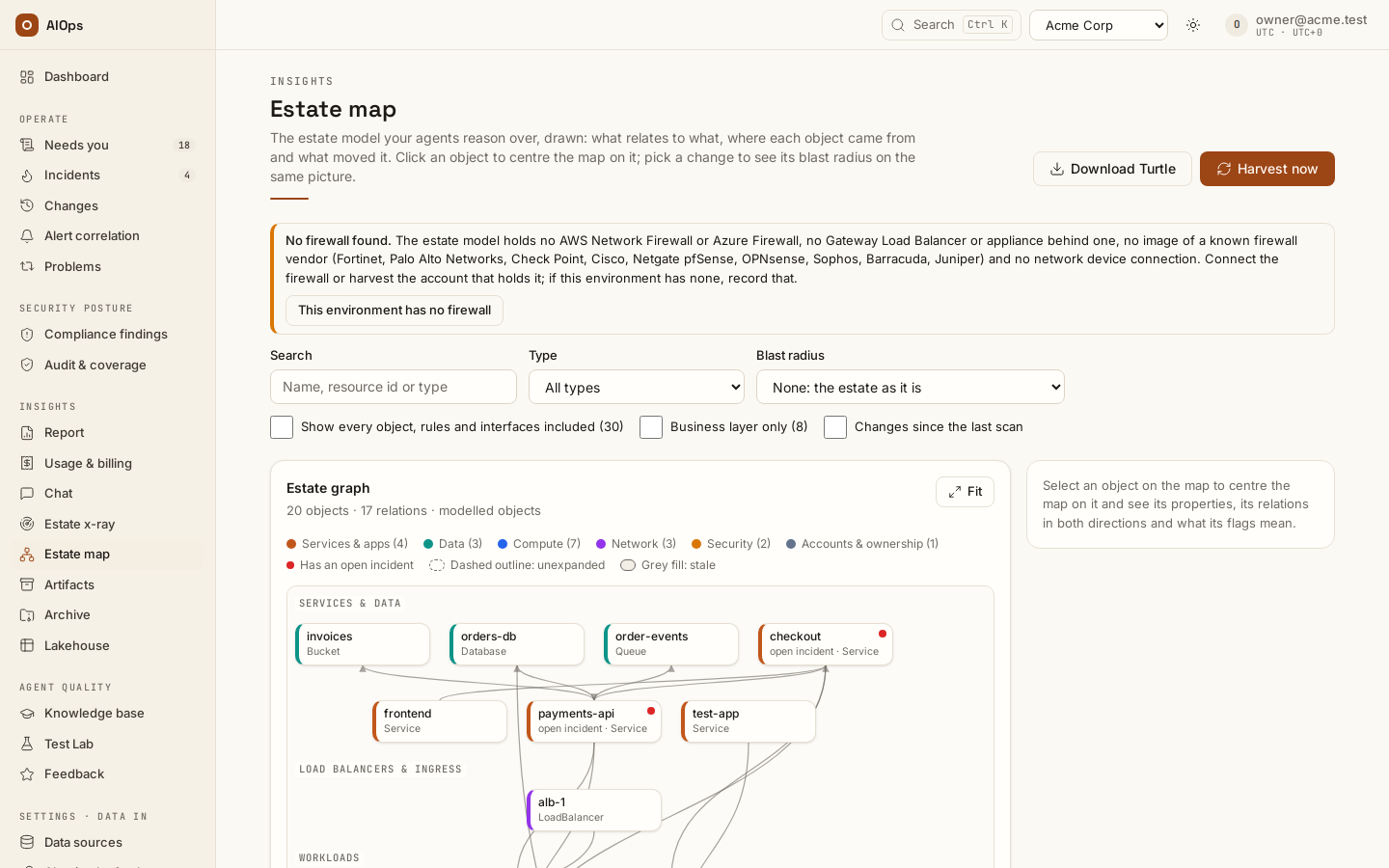
Estate map (in the product: /portal/estate) (Insights → Estate map, datasources.view) draws the estate model as it stands now: harvested connections, adopted scan context and the service dependency map, merged. It is the same model a change's blast radius is computed over. The scan page's Estate card shows a small picture of it with Open Estate map; the map shows the whole model.
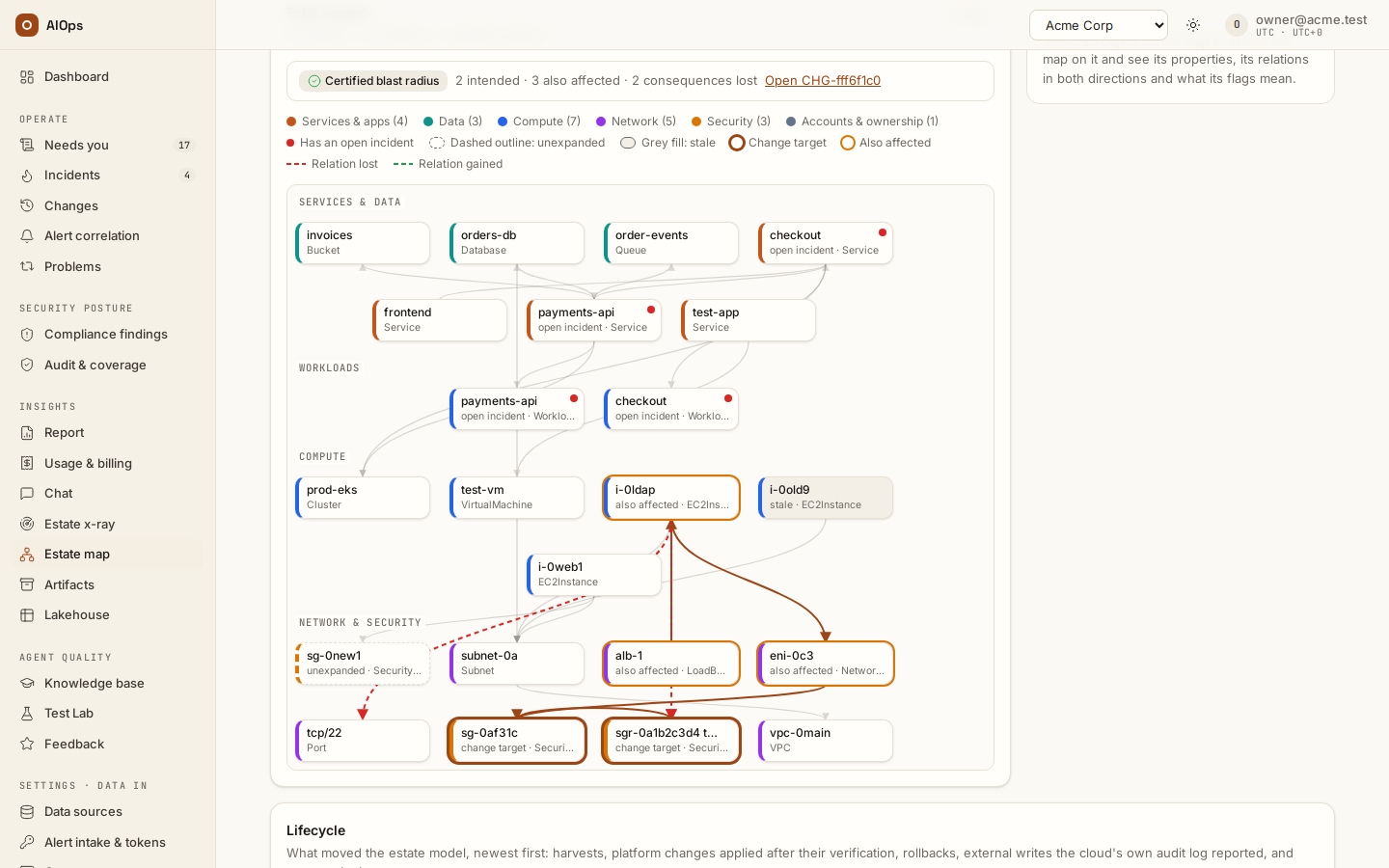
- Tiers. Objects sit in bands, top to bottom: services and data, load balancers and ingress, workloads, compute, firewalls, security groups and policies, subnets, interfaces and ports (with route tables and VPC endpoints), networks (VPC, with transit gateways, their attachments and route tables), then accounts and ownership. Most relations between tiers (runs on, uses, belongs to) run down the map; an interface's link up to its security group runs up; one inside a tier (calls, depends on) runs across it. An object's colour gives its kind, and the legend counts them.
- Layers and the cap. The map opens on the modelled objects: services, applications, API endpoints (an AWS API Gateway API, named by its API name), data stores, queues, buckets, functions, clusters and accounts, and the instances, workloads, load balancers, networks and security groups they run on — so a workspace that has only harvested its cloud already sees its estate. Business layer only narrows it to the business classes; Show every object adds the leaf detail: security-group rules, network interfaces and the inventory the vocabulary does not model. At most 300 objects are drawn. Past that, the map keeps the business layer and the most connected objects and says how many matched; search or pick a Type to see the others. When one object has more than six leaves of one class, such as a security group's rules, they fold into one dashed group node, for example 7 security group rules; click it to expand. More than twenty objects of one class that share the same neighbours, or have none — 77 functions with no VPC — fold the same way, so a wall of identical cards never draws; a search or a Type lists its hits one by one instead.
- Centre on an object. Every object is a pivot. Click one, or Tab into the map, move with the arrow keys and press Enter: the map re-centres on what lies within Hops (1 to 3, default 1) of it, every layer, and the panel opens on its class, resource id, where it was recorded from, its properties and its relations in both directions. A relation's other end is a button that re-centres on it. The breadcrumb above the map keeps the way back; Whole estate or Clear returns to the full map. Fit scales the map into its box. Hover an edge to read its relation.
- Flags. Each flag has its own outline and is explained in words in the panel: unmodelled (dotted; inventory only, relations unknown), unexpanded (dashed; a rule whose source the harvest could not expand) and stale (grey; not confirmed by the latest harvest, or changed outside the platform since). A change request's blast radius counts them against the whole map, one line per kind and only when non-zero: N of M resources in the estate map: no relationship model yet (types without a typed reader: …), … stale after the last harvest, left out of reasoning, … inconsistent between sources, left out of reasoning. A resource left out counts once, so the lines never add up past M.
- Firewalls. A firewall has its own colour, Firewalls in the legend: an AWS Network Firewall or an Azure Firewall, and a virtual machine the harvest marked as one. The AWS harvest marks an instance that a Gateway Load Balancer (or a GENEVE target group) sends traffic to; both harvests mark a machine whose image names a known firewall vendor — Fortinet, Palo Alto Networks, Check Point, Cisco (FTDv, ASAv), Netgate pfSense, OPNsense, Sophos, Barracuda or Juniper (vSRX). On AWS that is the AMI name, from one
ec2:DescribeImagesper region, a read the setup's read role already holds; on Azure, the VM's marketplace plan and image publisher and offer. The image also gives the vendor, which the panel shows as firewall vendor. An appliance from another vendor, or one on a renamed private image, is not detected. A marked machine keeps its own class beside the new one: the panel reads Firewall (EC2Instance). - No firewall found. When the model holds no firewall, no Gateway Load Balancer, no Gateway Load Balancer endpoint (the way a spoke account sends traffic to a firewall that another account runs) and no enabled network device, FortiGate or Palo Alto Networks connection, a banner above the map says so and names the vendors it detects. If the environment really has none, an owner or approver (
approvals.decide) chooses This environment has no firewall, writes a Note saying how they know, and selects Record: no firewall. The record lasts 365 days and is audited as No firewall acknowledged. Recording again through the API (POST …/estate/no-firewall, below) supersedes the earlier record, which stays in the trail. The banner then becomes one line naming who recorded it, when, and their note. A firewall found later does not delete the record: the map says it no longer holds. The x-ray report gives the same answer under Firewall. Through the API:POST /api/aiops/{tid}/estate/no-firewallwith{"note": "..."}; it answers400without a note and409while the model shows a firewall or holds nothing yet.GET /api/aiops/{tid}/estate/graphcarries the answer asfirewall:present,evidence,acknowledgedandcontradicted. - Open incidents. An object whose service has an incident that is not resolved carries a red dot and the words open incident; the panel links the incidents.
- Changes since the last scan. Tick it to mark what the latest scan's harvest found added, not seen, or changed outside the platform, the same lists as the scan's Estate changes since the last scan card.
- Blast radius. Pick a change request under Blast radius; the list holds the recent ones whose review recorded a blast radius and needs
incidents.view. Its targets get a thick ring and what else it affects a thinner one. The relations it takes away or adds are drawn dashed, red and green, beside the same basis badge as the change page. Objects in the report that the layer on screen does not hold, such as a security group on the business layer, are drawn as well. Open CHG-… leads to the change.
- Links in. The map keeps its state in the address, so it can be shared and other pages link to it: an incident's blast radius has Open on the Estate map (centred on the incident's service, as many hops as its blast radius reaches), and a change's blast radius card has Show on the Estate map.
- Download Turtle saves the latest scan's ontology, as on the scan page. Harvest now (
datasources.manage) refreshes every harvestable connection at once, with the same 55-second wait as on Data sources.
Service group: judge the graph before you approve it
Under the map, Service group shows what one service is made of, so a reviewer can judge whether the graph is right (report.view). In Service, resource or tag, type a service name, a resource id (an ARN, an ARM id, a Kubernetes id, or a bare AWS id such as vpce-0123456789abcdef0 even when the resource is named by its Name tag) or tag:<key>=<value>, for example tag:Application=shop, and choose Show group. On the map, Show its service group in the side panel opens the group of the selected object. The group lives in the address (?group=), so it can be shared.
The group is walked out of the same model the map draws. From what you searched it climbs to what fronts it: a target group, its listener and load balancer, a Kubernetes Service and Ingress, the business service that runs on it. A load balancer the AWS Load Balancer Controller made is joined to its Ingress (or, for a network load balancer, its Service) by the controller's own tags, once the Kubernetes connection's cluster name is the EKS cluster's. From there it goes down through the compute, the data stores the service uses, its security groups, subnets and VPC. It never climbs back up a shared subnet, security group, host or cluster, so a service that shares them stays out. Each leg reaches at most six hops. A call to another service is listed, not followed. The answer is grouped into tables:
- Endpoints: load balancers with their DNS name and scheme, listeners, API Gateway APIs with their default
execute-apiaddress, Kubernetes Ingresses with their hosts and Services. - Compute: instances, virtual machines, functions, workloads, pods and nodes.
- Data stores: databases with their endpoint, queues, topics, buckets and caches.
- Subnets: CIDR, availability zone, VPC and route table.
- Security groups: the rules open to the internet (an inbound rule from
0.0.0.0/0or::/0), marked Open to the internet, and the security groups allowed in. - Firewalls on the path: a firewall, a Gateway Load Balancer, or a Gateway Load Balancer endpoint the path's route tables send traffic to, including a firewall instance whose network interface a route names. A firewall a FortiGate or Palo Alto Networks connection also reads, joined to its instance by address, carries rules (how many enabled, how many deny, then their names) and managed by (the connection that read them). When none is reached, the table says so.
- Network path: from the group's subnets and VPCs, their route tables, the VPC's internet or VPN gateway, the transit gateway, its attachments and route tables, and on to the subnets and route tables of the VPC the traffic is sent to, up to eight hops, with each route table's routes. A gateway's own route table is followed only through its routes to the group's own subnets, and not at all for a group with no subnet address known, so a service beside the protected one in the same VPC, or behind another firewall, does not list that firewall.
- Also in the group: the business service itself, target groups and anything else the walk reached.
- Service graph: the service dependency map around what you searched, read left to right — each service calls the one to its right: Upstream · 2 hops, Upstream · 1 hop (the callers), This service, Downstream · 1 hop and Downstream · 2 hops (what it calls). Each service shows who it calls or is called by on the way in, its source and stale when its source has not reported it again lately; a solid border is a declared or traced dependency, a dashed one discovered or inferred. 1 hop / 2 hops chooses how far out it reads (two by default); a service's name opens its own group. On a phone the columns stack, callers first.
- Calls and Called by: the service dependencies naming a service of the group, with their source (declared, traced, discovered, inferred), when they were last updated, and stale for a traced or discovered dependency its source has not reported again lately. A service's name opens its own group.
Every row says where it was recorded from (the harvested connection, an Estate x-ray scan, the service dependency map, a change) and when it was last seen, and names the object and relation it was reached through. A name centres the map on that object, and Show on the map centres it on what you searched. Each table lists 100 rows at most and says so when it holds more.
Approve the graph under the tables carries the latest finished scan's discovered context, with the same control as the scan page: resources and links read from your cloud and trace maps are recorded as read, but what an Estate x-ray scan discovered joins the model only once someone approves it there (knowledge.manage). When nothing waits, it says so and links the scan.
Through the API: GET /api/aiops/{tid}/estate/service-group?seed=<name, id or tag:key=value> (report.view; the MCP tool is get_service_group) answers matched, sections (endpoints, compute, data, subnets, security_groups, firewalls, network, other), calls, called_by, counts and truncated. depth (1 to 6, default 6) limits each leg. A seed that matches nothing answers empty sections, not an error.
Every incident analysis walks the same group, from the incident's service and the resources its alerts name: the compute, data stores, endpoints and other resources it reaches (never subnets, security groups or the network path), 20 at most, nearest first, go to the analysis as Resources of this service, each with the telemetry your connections read it by (the CloudWatch namespace and dimensions, the Lambda or Container Insights log group, Azure Monitor by resource id, the Kubernetes and trace connections by name), and they widen the cloud health check to the services they run on. See Read an incident.
The model's lifecycle
Under the map, Lifecycle lists what moved the model, newest first, read from the audit trail:
- harvests requested and landed: the connection, the resources read, how many are inventory only, the model version written and a link to the inventory snapshot;
- platform changes applied after their fix was verified, with their blast-radius basis, and rollbacks that restored the model;
- external writes the cloud's own audit log reported: applied exactly, flagged stale, or added as a new inventory-only resource;
- scan context adopted into the model, with the dependency edges it discovered.
Each entry names who or what acted and links its change, scan or artifact. A workspace with no harvest yet shows how the model gets its first version: harvest a cloud or Kubernetes connection.
Model consistency
After every harvest, and every time a scan's inventory is applied or adopted, the platform checks the merged estate model. The check is deterministic code, never a language-model call. The harvest is the authority and is never flagged; what the agent recorded is what gets checked. A relation the agent recorded is flagged inconsistent when its verb is not in the estate vocabulary, when its target names no single entity in the model (an external node), or when it contradicts the harvest on a relation an object has only one of, RUNS_ON or OWNED_BY (the agent says a pod runs on node B, the harvest says node A). An entity the agent recorded is flagged inconsistent when it carries the resource id of an object the harvest typed differently.
Agent-recorded entities also age, counted in scans rather than days. When a scan's context is applied or adopted, an entity that none of the last three finished scans of the same connections recorded is marked stale, the flag the harvest uses for a resource it no longer sees; one a recent scan recorded again loses it.
Flagged entities and relations stay on the map, in the Knowledge base and in the agent's context, but blast radius, the change planner's list of dependents and the last-known-good cause leave them out, and an impact answer says under its coverage gaps how many it left out. The scan report's Model consistency section lists the vocabulary warnings, what is flagged in this scan's estate and the agent-recorded entities that adopting it would age, as counts with up to ten named items; the Estate card's Coverage shows the inconsistent count, and each check is audited as Estate model checked.
How far to trust the map
The map is evidence with stated limits. Five things decide how far a conclusion drawn from it can go.
- Every harvest reports its own coverage. A scan report's Estate coverage section lists, per connection, the resources read and how many are modelled (a typed reader recorded their relations) against inventory only (unmodelled: the resource exists, its relations are unknown), the count by type, the rules whose source could not be expanded, the reads the cloud denied, and any cap the harvest reached — 160 cloud calls, 25 pages per listing or 5,000 resources per connection. A partial harvest therefore shows as partial, never as a quietly thinner map. The Estate card's Coverage says the same at a glance, and the connection row on Data sources reads
Harvested <ago> ago · <n> entities, <u> unmodelled. - One record per resource, whatever the listing calls it. Resource Explorer and AWS Config list a Lambda function once per version and alias (
…:function:<name>:$LATEST,:3,:live), and the same for a Step Functions state-machine version. The map keys the resource by its unqualified ARN, names it by the resource, and keeps the versions and aliases as the properties versions and aliases, so the typed read and the inventory rows land on one node, and a change that names an alias (…:function:<name>:live) finds the function — a change request's target, and a write the audit-log harvest records (an alias update marks the function stale; it never adds a node of its own). An ECS task-definition revision and a Lambda layer version keep their own nodes: each is registered or published on its own, with its own status, permissions and findings, and a service or function uses one. A map harvested before 0.1.161 may still hold a node named$LATESTper function: the next harvest of that connection folds the twins it wrote into the function's node — a function that is gone keeps one node under its own name — and a connection that harvests daily cleans itself within a day. - The harvest is the authority. What the agent records during a scan is checked against it (see Model consistency): a relation that contradicts the harvest, names nothing in the model or uses a verb outside the estate vocabulary is flagged and kept out of blast radius, and an entity the agent records never renames or retypes a resource the harvest typed.
- Certified describes the reasoning, not the map. A change's blast radius reads Certified blast radius when the change is an exact delta over modelled resources and the independent checker accepted both certificates, the facts derived before and after the change. The reasoning over the recorded facts was checked, so it is sound; that is not a claim that the map is complete. What no connection read cannot be derived, and a change that touches an unmodelled, unexpanded or stale resource, or a scope too large to reason over, reads Estimated impact with the reason.
- Freshness has a bound, not real time. The resource layer follows the cloud: the scheduled harvest re-reads every harvestable connection once a day by default, and the cloud audit log is pulled every 15 minutes by default, plus the cloud's own delivery delay. A captured change the platform can translate — a security-group or NSG rule, S3 Block Public Access, storage public access — patches the model directly; any other captured change marks the resource stale and triggers a full re-read of its connection, at most one a minute per connection, and the flag clears once the re-read sees the resource. The service layer moves only when its sources do: a scan's context you adopt, an edge someone declares, a trace source's sync, or an inference over alert co-occurrence. The x-ray re-scan schedule is off by default (see Re-scan on a schedule), so adopted context ages until someone scans again; the agent's prompt carries its date.
- An outside reference covers only what it records. Comparing the map with another inventory compares only the resource types that inventory records: a type it does not record is absent there, not missing from your estate. Since 0.1.142 the map reads AWS Config's inventory and Resource Explorer itself, so neither is an independent check of what the map took from it: check those entries against the service's own API. Resource Explorer has its own type list (KMS aliases, for example, are not in it).
Compare models
Launching two or more models puts the scans in a comparison group. On the Estate x-ray list, each group renders as a Model comparison card — one column per model, rows for Status, Phases done, Prompt tokens, Completion tokens, Cost, Findings and a link to each Report — and it refreshes live while any of them run.
The list table itself shows Started, Datasources (with a +N badge when a scan spanned several), Status, Model, Phases, Tokens and Spend, the last written as spend / budget. The ⇄ compare link on a row re-opens that row's group.
Apply findings as disabled drafts
Apply Collection specs (datasources.manage) or Knowledge drafts (knowledge.manage) only after review. Historical remediation-route recommendations remain visible as legacy information and are not a normal apply option. Datasource suggestions, least privilege and ops findings are read-only advice. A kind you lack the permission for shows no button.
- Read the validation chips on the recommendation:
ready,needs_credentials,needs_endpoint,needs_datasourceorinvalid, plus any missing secret fields and the reasons.needs_endpointmeans the URL is network-scoped — cluster DNS or a private address the platform may not reach. - Select Apply as draft. The button's own tooltip states the contract: it creates a disabled draft, and nothing runs until a human enables it.
- Enable it deliberately — a spec on Lakehouse, a route on Data sources, a knowledge draft with Activate on the Knowledge tab.
You should see the row switch to Draft: <name> and, for a knowledge draft, a Review in Knowledge base → link to the pending list. Specs and routes land disabled; knowledge lands inactive with an [x-ray] name prefix. A knowledge draft is stored as instruction, ontology or service_graph — any other kind is coerced to instruction — and an ontology draft merges into your active ontology at apply time as described above.
For a suggested connector, Connect → opens the datasource form prefilled with the type, name and URL from the suggestion. It is shown with datasources.manage.
Drafts are disabled because x-ray output is synthesized from untrusted estate data. The scan reads systems the platform does not control; treating its output as directly executable configuration would let a compromised — or merely noisy — environment configure your platform. The draft state is that boundary. The wider posture is in the Security and data chapter.
Apply as draft is greyed out when the grounded validator returns invalid or needs_datasource; the reasons appear in the tooltip. A rejection at apply time is shown inline on the row, including the conflict you get when a spec, route or knowledge item of that name already exists. Apply it once; the second click is refused, not duplicated.
The runbook a single-datasource scan leaves behind
There is one place where a scan writes something the agents read without you clicking anything, and it is deliberate: when a finished scan covered exactly one datasource — the Scan button on a datasource row always does this, and so does ticking a single box in the launch dialog — the platform also saves the report into your knowledge base as an active runbook named datasource-scan-<datasource name>.
That is where a datasource scan's result lives, so future investigations and estate scans reuse what it discovered instead of rediscovering it.
- Open Knowledge and select the Knowledge tab.
- Find the item under Runbooks — or open the Agent skills tab, where it sits in Your runbooks.
- Review it. Select Edit and Save new version to correct it, or Disable if you do not want the agents reading it.
You should see the item badged active at v1, and at v2 after the next scan of the same datasource — each scan supersedes the previous one for that connector rather than piling up. A multi-datasource scan does not save this automatic runbook. Its inventory and dependency context can be reviewed and used with Use selected context; other applicable recommendations remain separate draft actions.
Proof the scan did not write to your estate
An estate x-ray is read-only by construction, not by configuration. Four independent mechanisms hold, and none of them depends on the credential you connected being weak:
- The scan runs against a read-only registry wrapper. A tool call that would be approval-gated is denied outright — never paused, never queued for a human — and counted onto the scan's blocked-call total, the
N calls blockedfigure in the header. - An independent guard re-classifies every call from the platform's own read/write classifier and ignores what the operator configured on the connector: a command-line call must use a verb from a hard read-only list, and an HTTP call is classified with no operator config at all, so neither extra read verbs nor widened read-POST paths can open a write inside a scan.
- Web fetches outside your tenant's allowlist are denied inside a scan rather than queued.
- Write-role datasources are refused at launch.
This is deliberately stricter than the rest of the platform. Elsewhere, what happens to an agent's write attempt depends on your deployment's posture — see the Agents and guardrails chapter. Inside a scan there is no posture to choose: the answer is always refuse and count.
These guards protect the connected estate. The scan still stores results inside AIOps and can save the single-connection runbook described above. The blocked-call counter records denied tool calls; use the scan report and audit trail to inspect what occurred.
Cancel and delete
Requires datasources.manage.
- Select Cancel on a running scan, in the list row or the detail header. The in-flight phase stops at its next checkpoint and spend so far stays recorded. The loop polls for cancellation every step, so this works even while a heavy model is retrying at the gateway. Cancelling an already-finished scan returns a conflict.
- Select the trash button (Delete scan) on a finished scan to remove the scan record, its report and its recommendations. The button only appears once the scan is no longer running; deleting a running scan is refused with a conflict telling you to cancel it first.
You should see the row leave the list. Two things deliberately survive it: drafts you already applied — they live on Lakehouse, Data sources and Knowledge now, and are deleted there — and the report artifact, because the artifact store is append-only. Deleting the scan is not a way to delete its report: the data-retention sweep removes a report only together with the finished scan it still belongs to, once the workspace's retention window passes (Agents and guardrails → Data retention), and a report whose scan was deleted by hand stays.
Use cases
Proving coverage to an auditor — compliance officer
The auditor asks what the platform can see and what it could change. The compliance officer launches an Estate x-ray across the connected read-role datasources, then opens the Pillar coverage table — per pillar, what is covered and via which connector, and what is missing with candidate connectors named — reading Coverage notes first so no gap is mistaken for a clean bill. The Service graph · ontology block answers the "what do you actually see" half, with the external row naming every dependency no connector reaches. The scan header shows read-only · N calls blocked: the count of unsafe calls the guard refused before execution. They select Download on the report and point at Artifacts, where the same report is stored append-only with URLs made safe and personal data pseudonymized at write time. For the data question, they show the Lakehouse erasure control and the compliance incident raised the last time the scrubber found personal data in telemetry.
Closing a gap — platform owner
The estate x-ray reports that dashboards exist but are not connected. The platform owner selects Connect → on the suggestion, which opens the datasource form prefilled, and separately selects Apply as draft on the suggested collection spec. The spec lands disabled. After reviewing its JSON on Lakehouse, they select Enable, and telemetry begins flowing into the lake on the next tick. A second scan a month later merges its entities into the same ontology, so the estate model now carries the dashboards too.
Troubleshooting
Symptoms specific to this page. Sign-in problems, missing nav entries in general, stuck or queued investigations, and $0.0000 costs are in the Troubleshooting chapter.
| Symptom | Cause | What to do |
|---|---|---|
| Estate x-ray missing from navigation | Missing role permission, disabled workspace or old client | Features are included; check workspace status and role permissions, then refresh the client. |
| An older client asks for feature activation | Obsolete grant/acceptance workflow | Update the client and inspect workspace/permission status; no acceptance step remains. |
| Launch refused naming a datasource as remediation-only | A write-role datasource was named over the API or MCP | Write-role connectors are never scanned. Connect a read-role twin for investigation and scan use. |
| Launch refused over the per-scan ceiling | Budget above the platform maximum, 25 USD by default | Lower the budget, or ask your platform operator to raise the ceiling. |
| Launch refused as too many concurrent scans | Four scans per tenant already running, counting each model of a compare launch | Wait for one to finish, or cancel one. |
| A scan finished but a whole area is missing | It ran out of pushes, budget or steps | Read Coverage notes — the scan writes down what it could not reach. Re-launch with a higher budget, fewer datasources, or guidance naming the area. |
| Apply as draft greyed out | The grounded validator returned invalid or needs_datasource |
Hover the button for the reasons. needs_datasource means connecting the named datasource first; needs_credentials still applies, you enable the draft after filling them in. |
| Apply refused as already existing | A spec, route or knowledge item of that name is already there | The first click worked. Find the draft on Lakehouse, Data sources or Knowledge. |
| Delete refused on a scan | The scan is still running | Cancel it first, then delete. |
| A deleted scan's report is still in Artifacts | The artifact store is append-only by design | Expected. Deleting a scan never deletes what it published; only the data-retention sweep removes an artifact, together with the closed record it belongs to, and never a certification artifact (Agents and guardrails → Data retention). |
Next steps
- Knowledge base — where adopted context and applied knowledge drafts live.
- Lakehouse — where an applied collection spec lands, disabled.
- Changes reference — the blast-radius basis and the harvest sources, field by field.
- Usage and billing — what a scan cost, under the Estate x-ray class.
- Knowledge, x-ray and insights — the hub for every page of this group.