Alert sources and intake rules — set it up like the demo
Wire CloudWatch, Azure Monitor and webhook senders to the intake, prove the path with a test alert, and set the rules for alerts that name no service or keep coming back.
How-to · Updated 2026-10-24 · Describes release 0.1.164
Goal
Deliver a labelled alert from its real source, read its receipt, and follow it into the correct incident. A practical setup uses one SNS topic for CloudWatch alarms and a generic webhook for controlled application signals. Configure recovery delivery as well as firing delivery.
Prerequisites
- A workspace whose owner has approved the source and the intended test scope.
pillars.manageto mint the workspace webhook token or create its validation sample;members.managefor intake rules;incidents.viewto read receipts and incidents.- A secret channel for tokens and a source-side administrator for SNS, Azure action groups or the monitoring platform.
- An agreed test identity, expected result, budget and cleanup. A real alert can start an analysis.
Procedure
-
Open Settings · Data in → Alert intake & tokens → Webhook ingest. Prefer the
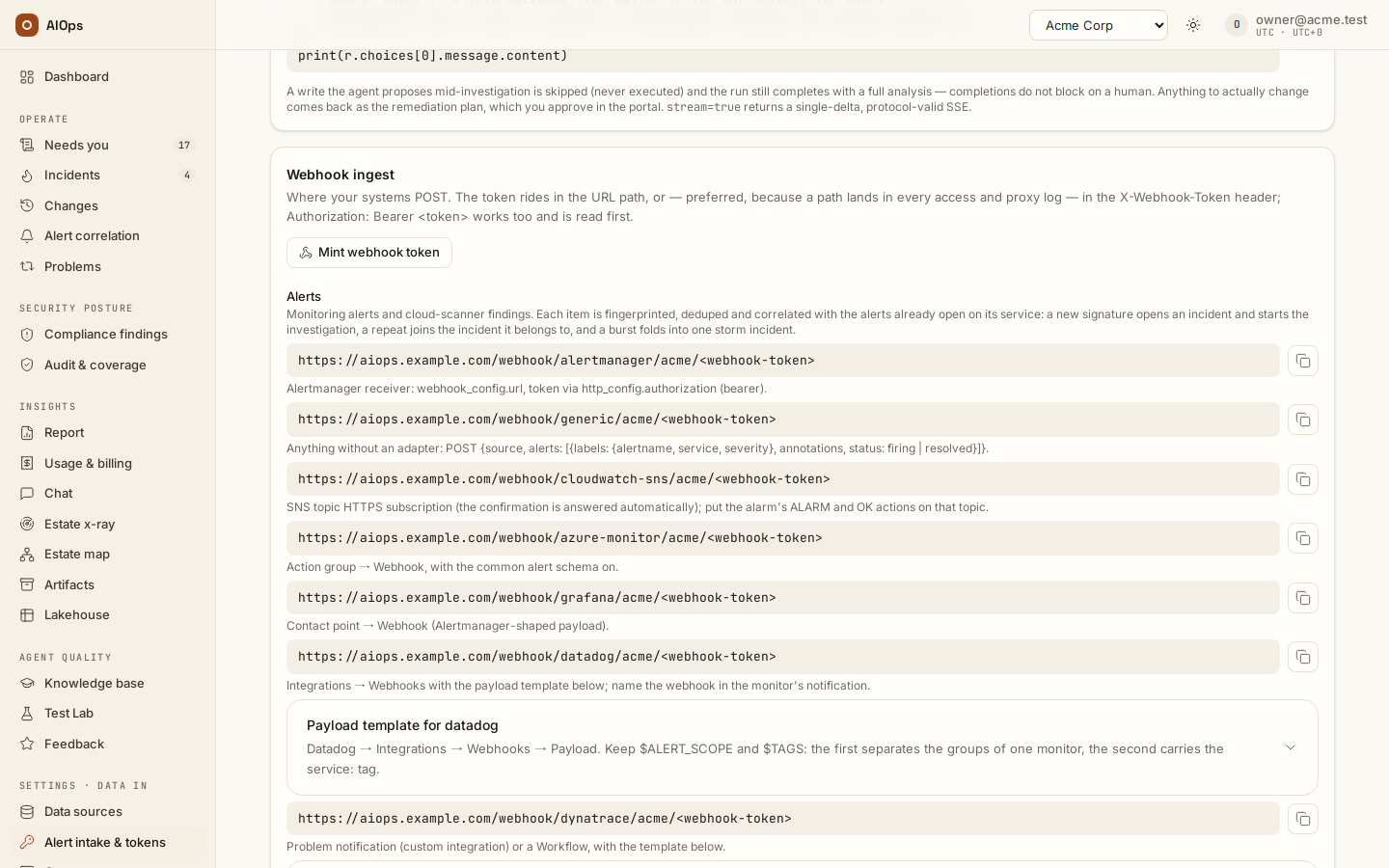
X-Webhook-Tokenheader. Use the path-token form only where the source needs it, such as SNS or an Azure action group. If minting a replacement, use Mint webhook token → Mint token and update every sender together: the old token stops immediately. Never put the value into a ticket or recording. You should see the token once and the source's endpoint recipe.API: the ingest endpoint is
/webhook/<source>/<workspace-slug>with the header token, or/webhook/<source>/<workspace-slug>/<token>for the path form. Token management isPOST /api/aiops/{tid}/webhook-token—pillars.manage; a personal access token needs theadminscope for it, and areadorwritetoken is refused with403. The path form suits SNS and Azure action groups, which cannot send a header: the platform readsAuthorization: Bearer, thenX-Webhook-Token, then the path segment.
-
In Send a test alert, choose the source and Create test alert. Save Sample payload as
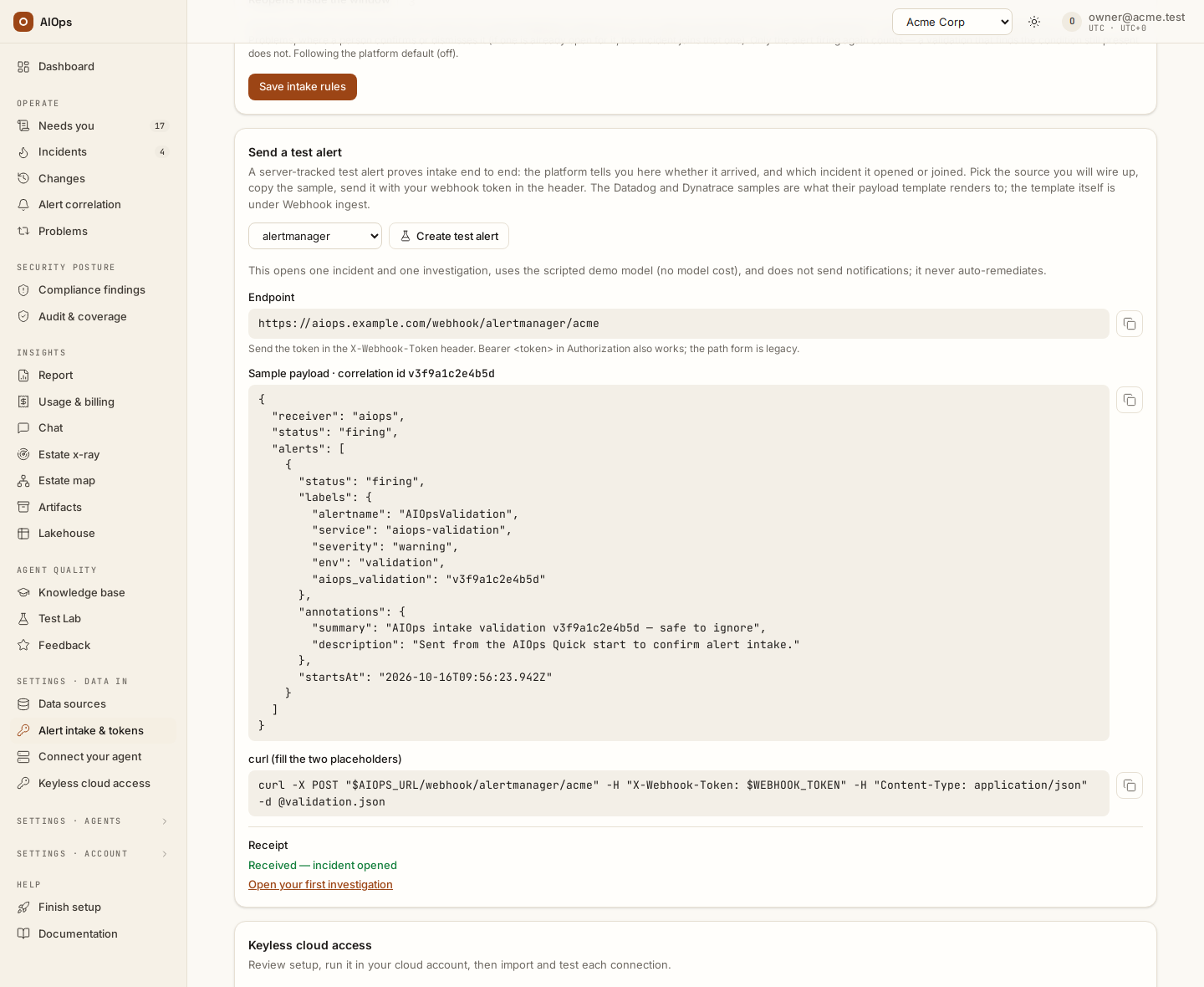
validation.json; setAIOPS_URL(this platform's address) andWEBHOOK_TOKEN, the two placeholders in curl (fill the two placeholders), then run that command from the folder that holds the file, in the approved environment. You should see a Receipt identifying the delivered sample and its resulting incident or held state.API:
POST /api/aiops/{tid}/intake/validationswith{"source": "alertmanager"}(orgeneric,datadog,dynatrace) —pillars.manage. Its201response carries what the card shows:endpoint,sample_payload(save it asvalidation.json) andcurl, plus theidand acorrelation_id; the sample expires after 24 hours. Receipt reads useGET /api/aiops/{tid}/intake/validations/{id}—incidents.view; that response repeatsendpoint,sample_payloadandcurland addsreceipt_state,incident_idandinvestigation_phase. Creating the sample and delivering it are distinct steps.
-
For CloudWatch, connect an SNS HTTPS subscription to the workspace's CloudWatch intake endpoint. Configure the alarm's ALARM and OK actions to publish to the topic. Do not add an INSUFFICIENT_DATA action as a recovery substitute. Give the alarm description a stable
service=orders-apihint and the intendedseverity=warning,errororinfo. A severity metric dimension takes precedence over the description; without a severity declaration the source defaults to critical. Useseverity=warningon your first alarms: a critical alarm opens a P1 incident, and under the default Derived change class policy a P1's fix is an emergency change (L3) that needs two different approvers. A warning opens a P3, raised one level when its blast radius reaches two or more services and one more for a mission-critical resource. An alarm with noservice=in its description and noServiceName,serviceor resource dimension (billing and account-wide metrics, for example) names no service: with the triage queue on (the default since 0.1.133) it opens its own heldunmapped=<fingerprint>incident under Needs you → Triage, with no analysis, ticket or page until someone chooses Analyse; mapping its source (step 5) gives the later alarms from that source a service. The commands for the topic, the subscription and anomaly-detection alarms, a CloudFormation starter and a forced test are in the No alarms yet? Start with the cloud's own anomaly detection guide of the delivered documentation. You should see the confirmation/delivery receipt and canonical service, severity, account and region on the signal.API:
/webhook/cloudwatch-sns/<workspace-slug>[/<token>]— source webhook authentication. SNS/alarm configuration is performed in the source account under its own authorized role. -
For Azure Monitor, enable the common alert schema and point the action group at Azure Monitor intake. Severity follows Sev0–Sev4; a target resource supplies the service identity, while a workspace/subscription-scoped rule can retain its own key. For Datadog, Dynatrace, Alertmanager and Grafana, use the source-specific setup and paste-in template in Alerts from your observability platform. You should see the source's own identity and severity mapped into the receipt rather than a guessed service.
API:
/webhook/azure-monitor/<workspace-slug>[/<token>], or the corresponding source endpoint. Owner-definedlabel_map/severity_mapusePATCH /api/aiops/{tid}settings —members.manage. -
Decide how unknown service identity is handled under Intake rules. The triage queue is on by default since 0.1.133 (
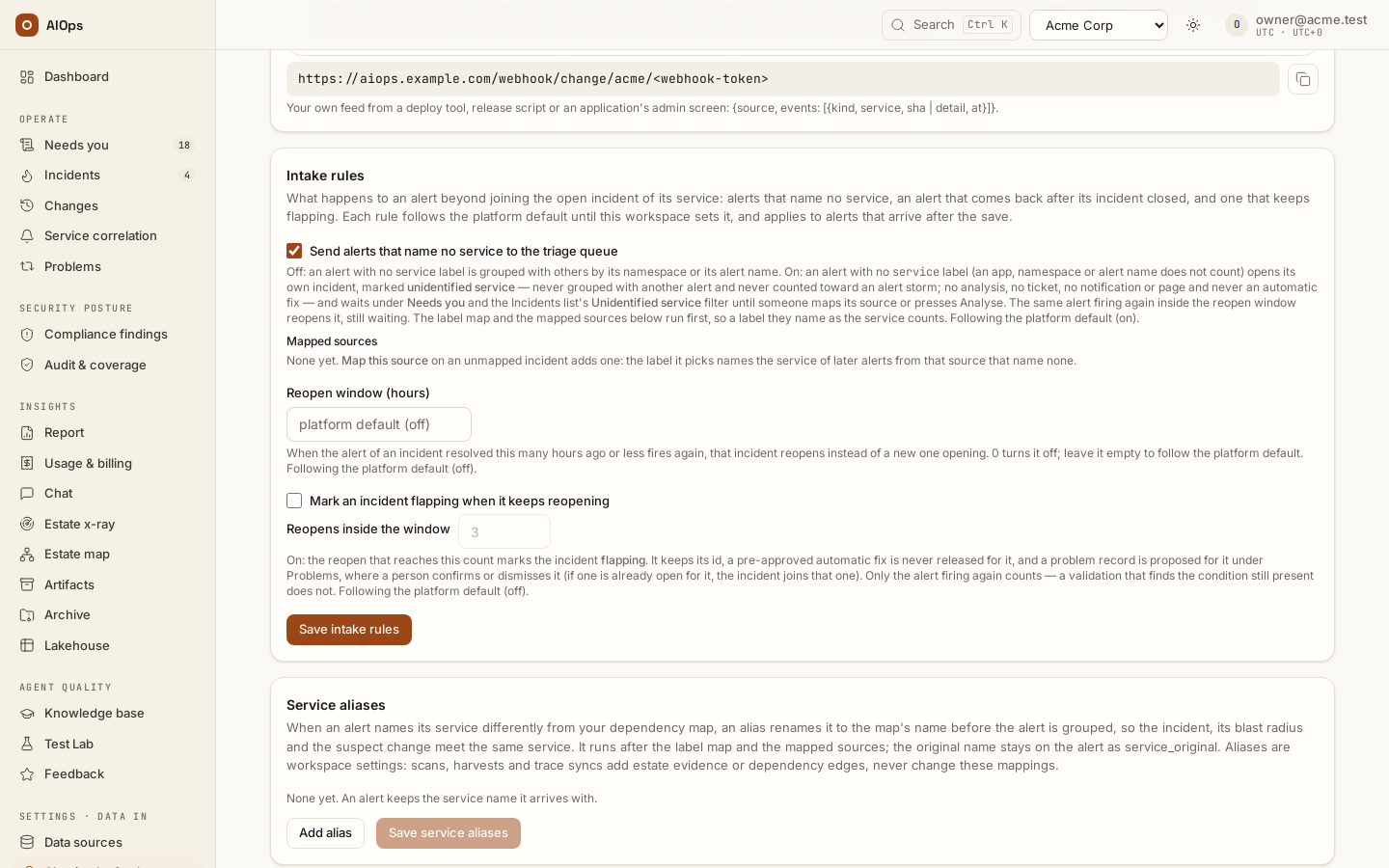
aiops_unmapped_triage, Send alerts that name no service to the triage queue); with it on, an alert naming no service is held under Needs you → Triage. Review it, choose Analyse when appropriate, or, on the incident's Unidentified service — map this source card, chooseUse <label> (<value>) as the serviceso the next signal from that source that names no service takes that label as its service. Removing a mapping affects future intake; it does not rewrite history. You should see the held reason, the mapping, and the next signal's actual key.API:
PATCH /api/aiops/{tid}/guardrails—members.manage; source mappings usesource_service_labels. Mapping a held case usesPOST /api/aiops/{tid}/incidents/{id}/map-sourcewith{"label": "<label>"}—members.manage. Analyse isPOST /api/aiops/{tid}/incidents/{id}/reinvestigatewith{}—incidents.act; it answers409while a run of the incident is already in flight.

-
Set Reopen window (hours) and, if needed, Mark an incident flapping when it keeps reopening. A returning signal inside the window can reopen the same incident, including a noise-closed one. At the configured threshold, read the flapping row/chip and the proposed Problem. Confirm and Dismiss are separate human decisions. You should see the original identity and actual reopen count; an Automatic fix blocked receipt exists only when eligible automation would otherwise have tried to run.
API:
PATCH /api/aiops/{tid}/guardrailswithreopen_window_handflap_threshold—members.manage. The separateaiops_require_identity_labelsgate is an API-only workspace setting; it has no checkbox. -
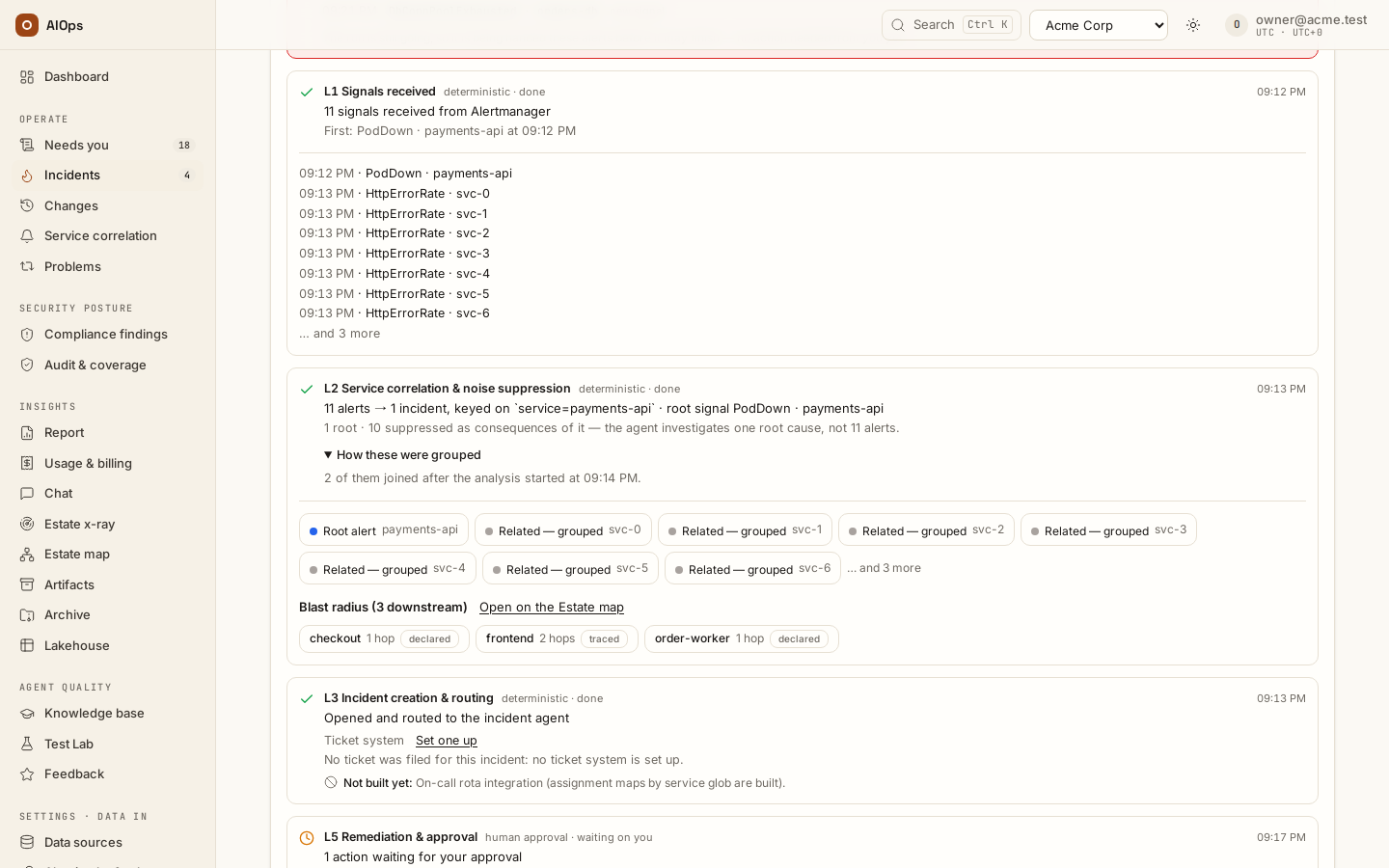
Read the result in L1 Signals received, L2 Service correlation & noise suppression (open How these were grouped), and L3 Incident creation & routing. Active duplicate fingerprints are counted without adding a new alert row. The correlation key uses service; an alert with no service opens its own unidentified service incident while the triage queue is on (the default), and only with the queue off falls back to namespace, then alert name, then fingerprint; this is not a sliding correlation-time window. Grouping services that fail together by their dependencies is a separate rule. You should see the actual receipt counts and the corresponding incident history.
API: incident/alert reads require
incidents.view. A rate-limited batch receives 429 withRetry-After; respect that response rather than splitting/retrying aggressively.
-
Send the source's recovery and verify the result. A clear can close an incident that is open or investigating. After escalation it can record Condition cleared while the incident still needs a person to close it. Finish only your test's cleanup. You should see the recovery receipt and the resulting recorded state; a source clear does not close every incident.
-
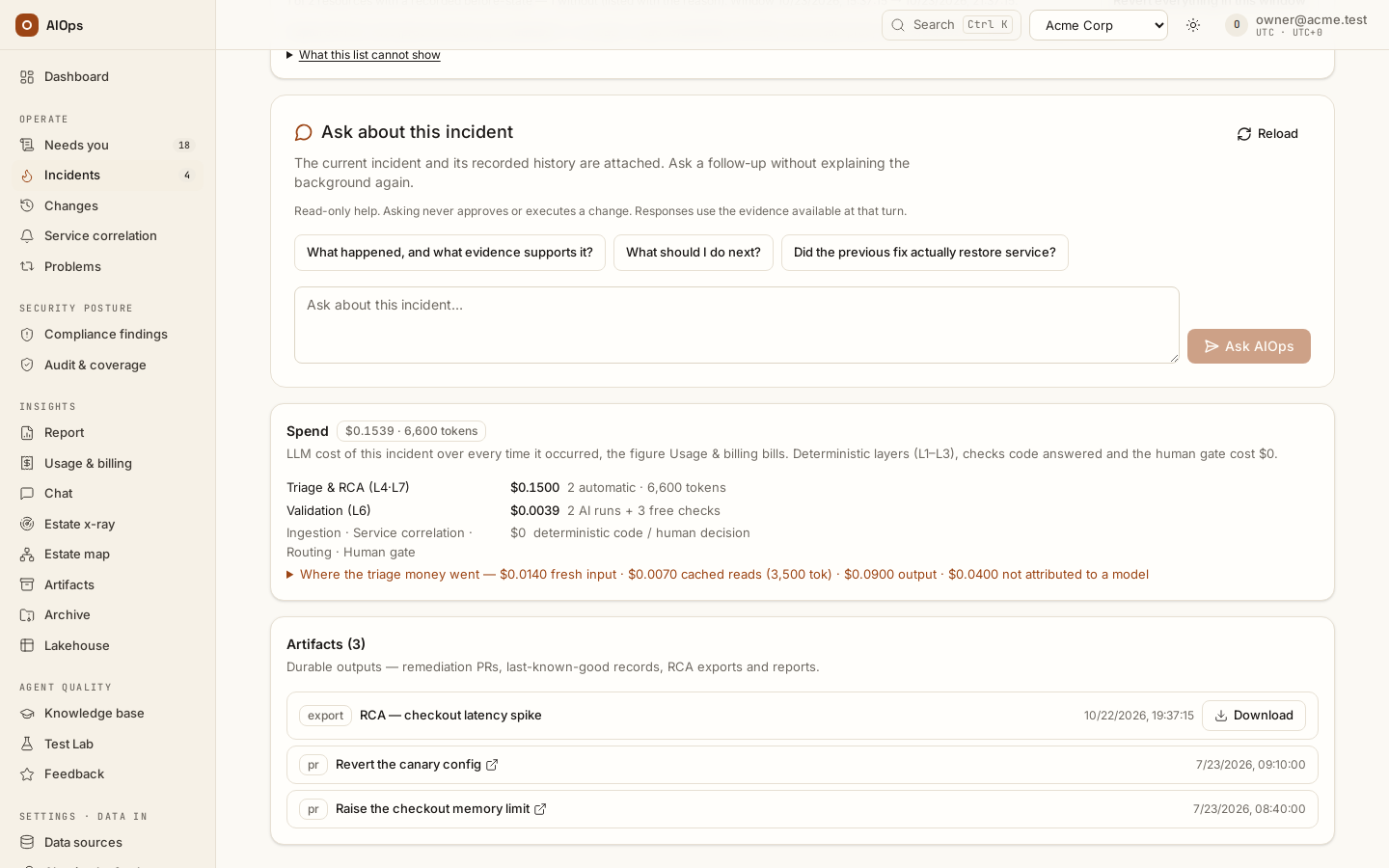
Read the incident’s Spend after the work actually recorded. Triage & RCA (L4·L7) separates automatic analysis from a person’s re-run; Validation (L6) separates AI runs, failed AI runs and free checks. Returning alerts can add occurrence rows to the same incident. You should see the actual amounts and counts for the recorded occurrences. An incident with no recorded investigation or countable check has no Spend card; do not start a run just to populate it.
Verify
Keep the source timestamp, receipt counts, canonical labels, incident identity and recovery result together. A sample's receipt proves its path; it does not establish that all production alarms are wired. A token that travelled in a URL before 0.1.120 should be replaced even though newer pages mask it. The path form itself stays the supported way to authenticate SNS subscriptions and Azure action groups.
Create the webhook token
Read this before you click. Minting a webhook token immediately breaks every configured alert source in the tenant. The previous token stops working the moment the new one is issued; there is no overlap window and no grace period, and the only symptom is 401 invalid webhook credentials on every incoming alert. Do this in a maintenance window, with every alert source open and ready to update, and with someone watching the Service correlation page.
Requires pillars.manage. Without it the Mint webhook token button is not rendered; the card says who can mint the token instead.
- Open Alert intake & tokens.
- Select Mint webhook token on the Webhook ingest card. The dialog explains that the previous token stops working immediately.
- Confirm with Mint token.
- Copy the value from the New webhook token card. Only its SHA-256 hash is stored, so this is your one chance.
- Update every alert source, then fire a test alert per source (Send your first alert).
You should see a New webhook token card at the top of the page, and — after step 5 — a new row per source on the Service correlation page.
For the rest of the page session the Webhook ingest card substitutes the freshly minted token into every ready-made URL, so you can copy each source's URL complete. Reload the page and the token is replaced by <webhook-token> again, because it is not stored.
Who else can rotate this token matters: platform staff can mint it for you too, which produces exactly the same breakage. Agree in advance who owns the rotation.
Troubleshooting
| Symptom | Check | Next step |
|---|---|---|
| 401 | Token rotation time and sender revision | Update the sender through the secret channel; avoid repeated token mints |
| 429 | Entire-batch refusal and Retry-After |
Wait for the indicated interval; keep the original receipt |
| Held for triage | Missing service or identity, and the effective intake rules | Review, Analyse or map the source; do not fabricate identity |
| Alarm clears in CloudWatch but no recovery arrives | OK action and SNS delivery | Repair recovery wiring and verify its own receipt |
| Priority seems too high | Actual canonical severity and criticality | Correct the source or its mapping for later alerts; count alone does not set priority |
| The alert arrived but no analysis started | The incident's heading and its Timeline: Held for triage — … means intake held the alert, Run failed — … means the run was refused or failed, AI budget exhausted means the per-incident limit is spent | Held for the triage queue (no service label while Send alerts that name no service to the triage queue is on, the default): choose Analyse, or map the source. Held for missing identity labels (aiops_require_identity_labels on, and neither a service-like label nor an alertname): add the label at the source. Refused at start: Pause all agents is on, the daily or monthly limit is reached (Settings · Agents → Guardrails & cost), or the platform licence is expired or invalid (platform staff install a current one); clear the cause, then Re-analyse. pillar disabled or unconfigured: tick Enabled for the Incident agent under Settings · Agents → Agent behaviour. A provider error: A run failed with a model provider error. Per-incident limit: Continue analysis (+$5) on the incident. An alert that joins an incident already open starts no second run |
Related
Webhook reference · External observability · Dashboard, Operate and alerts · Incidents · Notifications setup.