Dashboard, Operate and alerts
Read your next action on the Dashboard, follow the work under Operate, and trace an incoming alert to its incident.
Reference · Updated 2026-10-28 · Describes release 0.1.164
Dashboard: what needs your attention next
The Dashboard (/portal/dashboard) is the workspace's overall view: the pillar rings around the human gate (Incident & Problem, Compliance and Change Mgmt by default; SecOps, FinOps and Continuous Improve once listed under Guardrails → Dashboard pillars), the service KPIs of the last 30 days, pillar health, the human gate queue, one section per shown pillar and the guardrails strip. Every number is read from the same counts the lists show, and a number that is a link opens the list whose total it is. It has its own chapter: Dashboard.
The Incident & Problem section leaves compliance findings out; they are counted under the Compliance section and worked under Security posture → Posture. The Human gate counts incidents waiting for an approval and change requests pending approval; risk requests, triage, certifications and the other decisions are listed under Operate → Needs you. A workspace with a Test Lab adds a card with the lab's active investigations, running scans, last run and today's spend; the lab's own work never counts in these numbers.
The sidebar carries the rest: Operate (Needs you, Incidents, Changes, Service correlation, Problems), Security posture (Posture, Vulnerabilities, Patching, Backup, Audit & coverage), Insights (Report, Usage & billing, Chat, Estate x-ray, Estate map, Artifacts, Archive, Lakehouse), Agent quality (Knowledge base, Runbooks, Test Lab, Feedback), the Settings groups and Help.
Operate: follow the whole piece of work
Operate gathers Needs you, Incidents, Changes, Service correlation and Problems; Security posture sits beside it in the sidebar. Choose the job there, or use the links on each record to move between related evidence. Incidents lists operational incidents only; compliance findings are under Security posture → Posture.
An incident is the piece of work an engineer investigates. An alert is one signal attached to it. Several alerts may be evidence of the same problem; they do not necessarily need separate decisions. Changes records approval, execution and verification of planned work. Problems links repeated incidents so the team can pursue a lasting fix.
A status of Needs attention (escalated in the API) means the agent has handed the incident to a person. It may follow a proposed fix, a failed investigation, or a handoff. Read the reason on the record instead of assuming every escalation is an approval request. A status of open means the incident was found but not analysed yet.
Incident and approval procedures.
The Service correlation page
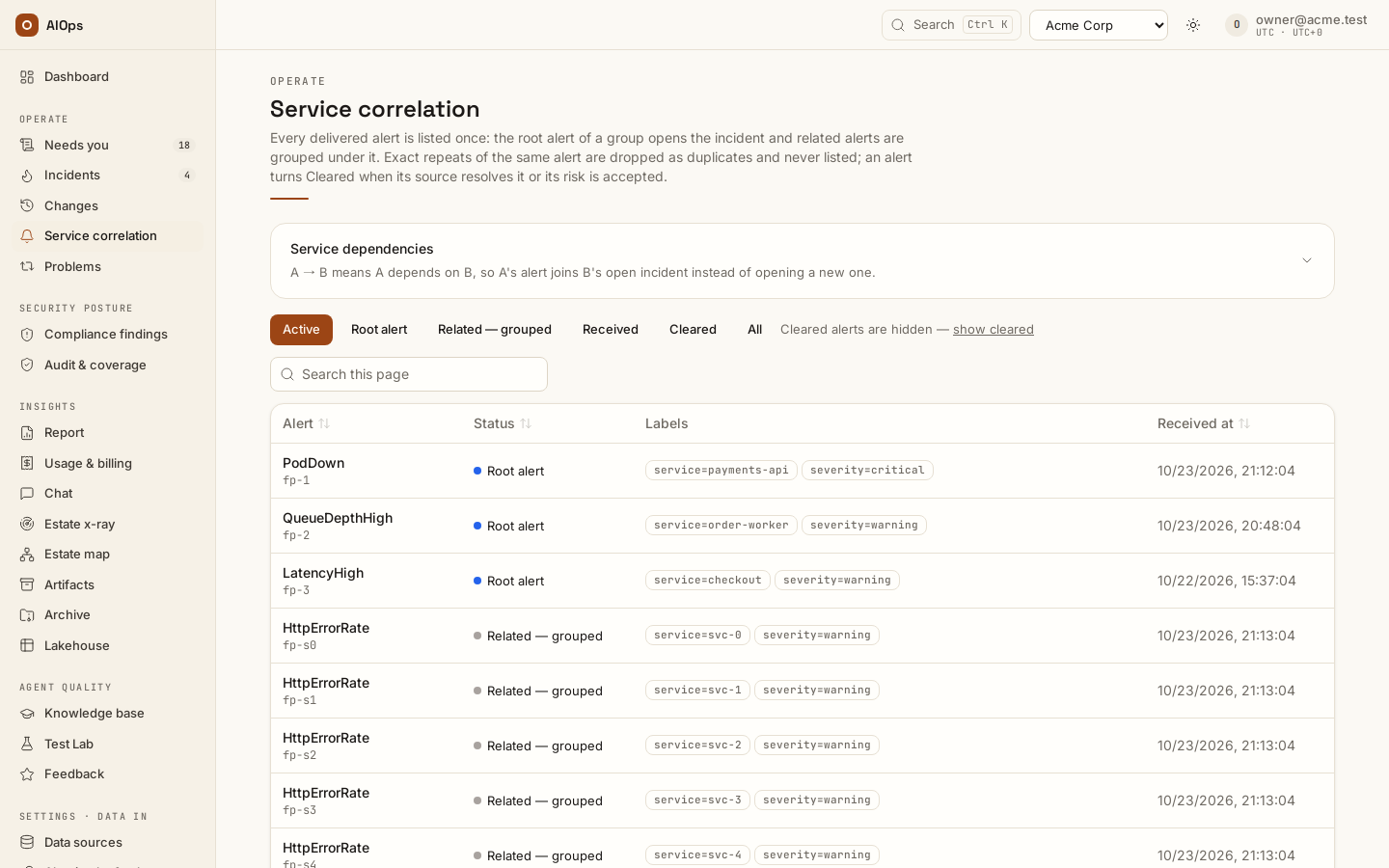
Open Operate → Service correlation (/portal/alerts). Reading the page needs incidents.view.
| Column | What to read |
|---|---|
| Alert | Alert name (a link to its incident when it has one) and its fingerprint |
| Status | How the signal was handled |
| Labels | Up to four of the alert's labels |
| Received at | When this signal reached the workspace |
A linked alert opens its incident. Unlinked alerts remain readable and do not pretend to have an investigation. The server pages the list in groups of 50; Search alerts asks the server, so it matches an alert name, service or label value across every page, and the total follows the search (?q= and ?service= in the link prefill it). Use Prev and Next for older signals.
An empty stream means no alerts were received, not that the environment is healthy. Connect alert source opens the webhook setup for a permitted operator; otherwise View workspace readiness explains what remains to be connected.
What the four statuses mean
The page shows a label; the API returns the value in backticks.
- Received (
received) — stored without a linked incident, for example imported or seeded data. - Root alert (
correlated) — the root alert of its group: the one the incident is built around. Usually the alert that opened the incident, but the role can move — a reopen, a merge or the analysis itself can name a different root. - Related — grouped (
suppressed) — the alert is grouped under an incident as related evidence. It was not discarded. - Cleared (
ignored) — the source reported the alert resolved, or the risk on its finding was accepted. It does not mean the alert was dropped or filtered.
An exact repeat of an alert that is still active is never listed: it is counted as a duplicate and dropped (see Dedupe, correlation, suppression). The list opens on Active, which hides Cleared rows; use the Cleared or All filter to see them.
Service dependencies
Expand Service dependencies at the top of the page; the list loads when you open it. A → B means A depends on B, so A's alert joins B's open incident instead of opening a new one. The table lists every recorded edge with its source: declared (added by your team), traced, discovered or inferred (observed in the API); what each source in the table means is listed under it. Reading it needs incidents.view; with datasources.manage, enter the two services and select Add dependency, or select Remove on a row.
- Enter the exact value of the alerts'
servicelabel. For a CloudWatch alarm:service=<name>in its description, else itsServiceNameorservicedimension, else its most specific resource dimension (instance ID before Auto Scaling group, target group before load balancer); an alarm with only category dimensions and noservice=hint has none. For Azure Monitor: the target resource name. An Azure alert whose target is a Log Analytics workspace, Application Insights or a whole subscription has none, so a dependency cannot fold it. The services of recent incidents are suggested. - A's alert joins only when A has no unresolved incident of its own, and B's incident is unresolved and received an alert in the last 30 minutes (the platform default). An incident that is already open sees an added or removed dependency only when a new alert joins it; a repeat of an alert that is still firing does not count. Until then, alerts keep folding into it through a removed dependency. Add
A → Bbefore B's first alert. - Every recorded dependency also widens the blast radius of B's incident: two or more dependent services raise its priority one step, and a fix whose blast radius reaches three or more declared or traced dependents is L3 and needs two approvers.
- Only declared dependencies fold by default. The workspace setting
aiops_topology_fold_originsreplaces the default list, so keepdeclaredin it (for example["declared","traced"]; inferred edges areobserved). Set it withPATCH /api/aiops/{tid}(members.manage), as in REST API → The endpoints most people want. A machine-recorded edge then folds only for a direct caller, seen in the last 7 days (the platform default), of a dependency with at most 10 direct callers. Edges that do not fold are still shown and still widen the blast radius. Adding a pair that is already recorded makes it declared. A removed machine-recorded edge can return at the next scan, trace sync or inference. - Every fold is written to the audit log as
incident.folded, with its rule, for exampletopology:declared. Adding dependencies is audited astopology.declaredwith the pairs, removing one astopology.deleted.
Dedupe, correlation and storms
Ingest deduplicates repeats, correlates the alerts that share a key into one incident and folds dependents in as related evidence; services failing together are grouped under the one they depend on, and an alert that names no service can be kept out of every group. Those rules, the grouping windows and agent switch, how to check a grouping, and unmapped and flapping signals are owned by Storms, unmapped and flapping signals: the grouping rules under Dedupe, correlation, suppression, grouping by the service graph under Alert storm: grouped by the service graph and the check under Check the grouping outcome.
Resolution and signal handling
Resolution runs the other way. When a source sends a resolved event, every matching active alert turns Cleared (ignored). The incident auto-closes only when both conditions hold: none of its grouped alerts is still active, and the incident is open or investigating. An incident sitting at awaiting approval or remediating is never auto-closed — a human is in that loop, and the platform will not pull the incident out from under them. Note that Robusta findings never send a resolved event by design, so incidents from that source close by remediation, by a person, or not at all.
Two consequences worth carrying into a design review. Tenant label and severity maps are applied before any of this, so mapping your sources onto the canonical taxonomy is what makes correlation work; see Canonical labels and workspace maps. And be precise about scrubbing: the always-on personal-data floor covers the data lake at capture and has no off switch, but scrubbing alert labels, annotations and raw payloads at ingest is a separate platform-wide chokepoint that is off by default — if your alert bodies can carry personal data, ask your platform operator to enable it before you rely on it. See Security and data.
Raise a concern
A person's observation can enter the same pipeline as a monitoring alert. Starting an investigation may incur model cost, notify configured recipients and trigger configured automation; the dialog makes that consequence explicit.
- On the Dashboard, choose Raise a concern. This needs
incidents.act. - Enter What is happening?. A short summary is required.
- Optionally add What have you observed? and Affected service. Use the service name from your telemetry so the concern can join an existing incident.
- Choose Severity: Informational, Warning, Error or Critical.
- Review the consequence and select Start investigation.
A newly created incident opens directly. If the concern joined existing work or was deduplicated, the incident list opens instead. The evidence still follows the ingestion rules in Storms, unmapped and flapping signals. Errors stay in the dialog; cancelling sends nothing.
Write an observation the investigator can check, such as Checkout latency increased after the 14:10 deployment, with a time window and service. Repeating identical summary, severity and service can deduplicate the signal. Joining a live incident does not start an extra investigation. The normal approval, spending and execution policies still apply.
Read the evidence behind the page
| Dashboard source | What it establishes |
|---|---|
GET /api/aiops/{tid}/dashboard/summary |
Every count, score and KPI on the page, composed from the list summaries, the saved compliance report, the spend rollup and the problem, route and knowledge rows; cached for a minute per workspace, and the page says when it was read |
| Needs you | The human gate queue: server-ordered rows and totals, with unavailable source kinds disclosed |
| Setup status | Whether the workspace has an enabled read connection, which decides whether the setup card shows |
The summary refreshes every minute while the page is open and the queue every 15 seconds. Data can change between reads. For service levels, remediation outcomes and posture over a period — with platform cost in a closed appendix — open Insights → Report.
If something looks wrong
| Symptom | Next step |
|---|---|
| The Dashboard says the queue could not be loaded | Open Operate → Needs you; open Operate → Incidents to inspect records that are available |
| A partial queue shows no items | Resolve the named source error before assuming there is nothing waiting |
| A saved connection still needs verification | Open Connections and check the test result for its current configuration |
| The queue is empty while investigations run | Read Pillar health for the last runs; a read-only investigation need not produce an approval request |
| A fix was approved but the incident is still open | Inspect execution, pull-request merge and condition-clear evidence on the incident |
| A page or action is missing | Check workspace, role and setup prerequisites in Members and roles |
Webhook setup · Investigation and recovery · Reports and source coverage.