Start here: your first investigation
Connect one read source, discover its context, send a test alert and follow the answer. Add approved fixes when you are ready.
How-to · Updated 2026-10-27 · Describes release 0.1.164
New here? Read What the platform does first: the seven agents, the path from an alert to a verified fix, roles and what spends model budget. Not sure what to connect? Choose your connection compares alert sources, read connections, write credentials, the private-network agent and ticket systems, and what each agent needs.
Prerequisites
Have these ready on your side before the first alert. Each link is the guide for that step.
- A read-only cloud role for each account or subscription you connect: Connect AWS, Connect Azure. What read access allows, and what it never allows: Read connection versus remediation access.
- An alert sender with a service label. Your monitoring posts to the workspace webhook, and each alert names its service, the label incidents are grouped and related by: Send an alert and check its receipt and Canonical labels and workspace maps. An alert with no service waits in the triage queue (Unmapped signals).
- One name per service. Where an alert's service name differs from the name in your dependency map or trace backend, map one to the other with a service alias.
- Optional, on AWS: a Resource Explorer index with a default view in each region you connect (untagged resources reach the map), the AWS Config recorder (Config's recorded inventory), and CloudWatch Application Signals (the service map): More of the estate on the map.
Watch the walkthrough
A walkthrough with English narration and synchronized captions: the start page, the data source list, the connect form, what read access and write access each mean, and estate discovery. It covers steps 1 and 2 below. In Quick start, the current task comes first; expand Watch the connection walkthrough when you want the video. Recorded on the restored portal with sample data; these clips demonstrate the controls and do not prove real-cloud operation.
Video: Your first connection: read access, the connect form and estate discovery — Watch (1 min) · Captions
Recorded 16 Sep 2026 on 0.1.74 — the page has changed since; see Manage connections.
Read the transcript. For the other half of the path — an alert arriving, the agent's activity trail and the approval gate — watch an alert becomes a fix.
Follow along
The path: Read connection → Harvest its inventory, then optionally run a discovery scan → Optional approved-fix setup → Send an alert → Review the incident and ask a follow-up.
You can investigate without write access. A separate write connection is needed only when you want to apply an approved fix. The estate harvest is required: a deterministic read of each AWS, Azure or Kubernetes connection's inventory, with no agent and no model spend. The agents read the harvested inventory, the Estate map draws it, and a change's blast radius is computed from it. Discovery, the Estate x-ray scan, is optional: an agent run that enriches that inventory and spends model budget up to the limit you set when you launch it. Both are included in every enabled workspace and need the appropriate permissions and a readable connection.
Before you start: choose your workspace in the top bar. You need an owner or operator account, a system you can read, and its endpoint or cloud identity. An owner must configure alert intake if you cannot create its token. Before the first fix, seat at least one owner, one operator and one approver in Members & roles (in the product: /portal/members). An operator connects systems and requests a fix; only a role with approvals.decide (owner, approver or executive) releases it. Under the default change class policy a fix for a P1 or critical incident is an emergency change (L3), which needs two different approvers.
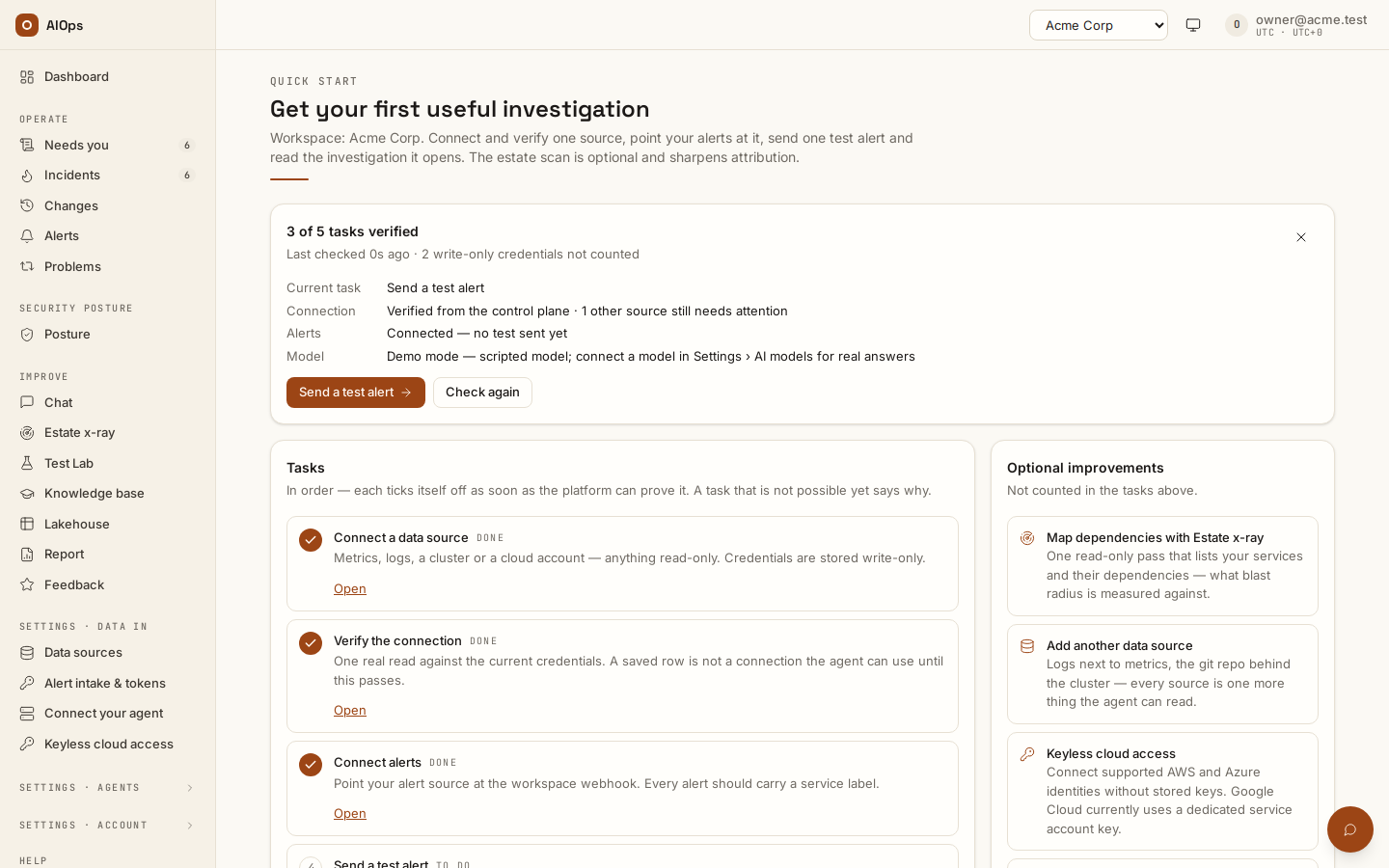
Open Quick start (in the product: /portal/start) and follow the current task at the top. If you return to an empty Dashboard, Continue setup takes you back to these steps. A failed connection-status check means the state is unknown; use Retry before deciding that the workspace has no sources.
1. Connect one system
Open Data sources (in the product: /portal/datasources), choose Connect datasource, and select your connector. Keep its role as Investigate only. Follow the permission and setup instructions inside that dialog, then select Connect and verify.
For a first cloud connection, Quick start also links directly to Connect AWS (in the product: /portal/connect/keyless?provider=aws) or Connect Azure (in the product: /portal/connect/keyless?provider=azure). If Platform setup required appears, follow its administrator link or copy the handoff for your platform operator. That step needs platform configuration before your cloud setup command can be generated.
You should see: a successful read test. “Saved”, “queued” and an agent heartbeat do not prove the system was read. If the test fails, the dialog explains what to fix.
Choose a worked example: AWS · Azure · Google Cloud · Kubernetes · On-premises.
2. Discover what is connected
For an AWS, Azure or Kubernetes connection, harvest it first: open Data sources (in the product: /portal/datasources) and choose Harvest now on its row (datasources.manage). Connecting does not start a harvest, and the scheduled harvest runs once a day by default. The API call is in Estate harvest.
You should see: Harvested N entities., and the line under the connection's name reading Harvested <time> ago · N entities, U unmodelled instead of not harvested. If the page says the harvest is still running, it keeps going and the row updates when it lands. Harvest skipped: <reason> names what to fix, and a harvest that read nothing gives the reason after Harvested 0 entities.
Optionally, open Estate x-ray (in the product: /portal/xray), select the verified read connection and start a scan within the displayed budget. The scan is an agent run and spends model budget, up to the Budget (USD) you set (25 USD by default), and it also harvests its connections before the agent starts. Open its result, review the discovered inventory and dependencies, then choose Use selected context for the items you trust.
You should see: a saved result for each selected item. A failed item stays visible and can be retried; a report alone is not active knowledge. Use the scan's chat to ask which services were found or what is missing.
If Discovery is unavailable, continue with your read connection and add any useful system notes in Knowledge (in the product: /portal/knowledge).
3. Connect write access, if you need it
In Data sources (in the product: /portal/datasources), choose Approved changes only (separate credential) for a separate identity, or Investigate and approved changes (same credential) for one identity. Scope its provider permissions to the intended environment and explicitly enable Allow use for approved plans. Save and inspect the access-check result when available; review the exact proposed action on the incident or Change before approving it.
You should see: a write · approval required connection. No action or target form follows. Each supported incident plan prepares its own exact change and selected connection for approval. Saving the connection executes nothing and does not prove every future write permission. You can skip write access and still investigate alerts.
Read connection versus remediation access.
4. Send one test alert
Open Alert intake & tokens (in the product: /portal/tokens#validation). Under Send a test alert, choose the alert format and select Create test alert (pillars.manage). Save its Sample payload as validation.json, set the command's two placeholders — AIOPS_URL to this platform's address and WEBHOOK_TOKEN to the workspace's webhook token (Mint webhook token issues one when nobody holds it) — and run the command once from the folder that holds the file.
You should see: a received validation signal and a link to its incident. Open the incident directly from the result. Do not mint a new token just to see the current one: a new token stops the old one at once for every sender.
Send an alert and check its receipt.
5. Read the answer and ask a follow-up
The incident presents what is affected, what has been found and what needs your decision. Read the evidence, then ask the incident's chat “What caused this, and what evidence supports it?” The conversation stays attached to this incident, so you do not need to paste its history into a new question.
You should see: the answer and its supporting records. If a fix is proposed, review its scope and recovery check before approving. When a fix runs, wait for the condition-clear evidence; manually closing the incident does not establish recovery.
6. Automatic fixes, when you want them
Optional. Nothing runs on its own until a workspace owner turns it on and an approver certifies a runbook route. Runbooks and automatic fixes sets it up like the demo; Automatic API fixes for proven runbooks covers the one case where a certified API runbook repeats a verified fix with no click.
Start with the Dashboard
Return to the Dashboard (in the product: /portal/dashboard) when you sign in again. It shows every pillar's open work, the writes waiting for a person, the service levels of the last 30 days and each pillar's agent health. Use the live Quick start (in the product: /portal/start) to find unfinished steps.
| Sidebar group | Use it for |
|---|---|
| Dashboard | What should I do next? |
| Operate | Needs you, Incidents, Changes, Service correlation and Problems |
| Security posture | Posture, Vulnerabilities, Patching and Backup (the compliance findings of each domain), and Audit & coverage: scores per standard, risk decisions and coverage (SOC 2 / ISO 27001 frameworks are phase 2, off until your platform administrator turns them on) |
| Insights | Report, Usage & billing, Chat, Estate x-ray, Estate map, Artifacts, Archive and Lakehouse |
| Agent quality | Knowledge base, Runbooks, Test Lab and Feedback |
| Settings · Data in | Data sources, Synthetic checks, Alert intake & tokens, Connect your agent and Keyless cloud access |
| Settings · Agents | Agent behaviour, AI models and Guardrails & cost |
| Settings · Account | Members & roles, Workspaces, Notifications & on-call, Audit log and Appearance |
| Help | Quick start and this documentation |
Report (in the product: /portal/report) is the service delivery report for the last 7, 30 or 90 days: service levels against priority targets, noise and correlation, what the agents changed and whether it held, compliance posture, recurring problems and human feedback — with platform cost in a closed appendix at the end.
Find anything: Ctrl+K
Press Ctrl K (⌘K on a Mac), or select Search in the top bar, to jump to a page, a settings section, an incident, a change, a connection, a knowledge item or a section of this guide. Type a few letters, such as retention, kill switch, sso or the eight-character id an incident page shows, then press Enter. The arrow keys move between results and Escape closes the search. Before you type, it suggests what is waiting for you, such as the items in Needs you or your next setup step.
Search only takes you somewhere: approving, running and deleting still happen on the page. It lists only what your role can open, and the shortcut does nothing while another dialog is open.
What the agents may do
Read connections supply investigation evidence. Write credentials serve only the execution path: approved plans, pre-approved routes and the scanner write-back of an approved suppression. Additional safety rules may pause or deny an action. Configured automation can open a pre-approved pull request and, only where a workspace owner turned it on, repeat a certified API fix the platform already verified. The incident and change records show what actually happened.
Roles and personal preferences
Who does what in a workspace, and the sign-out and theme controls in your account menu, are on Members and roles → Roles and personal preferences.